The SH2-134 Region of Cepheus 2026: Image Processing Walkthrough
October 20, 2026
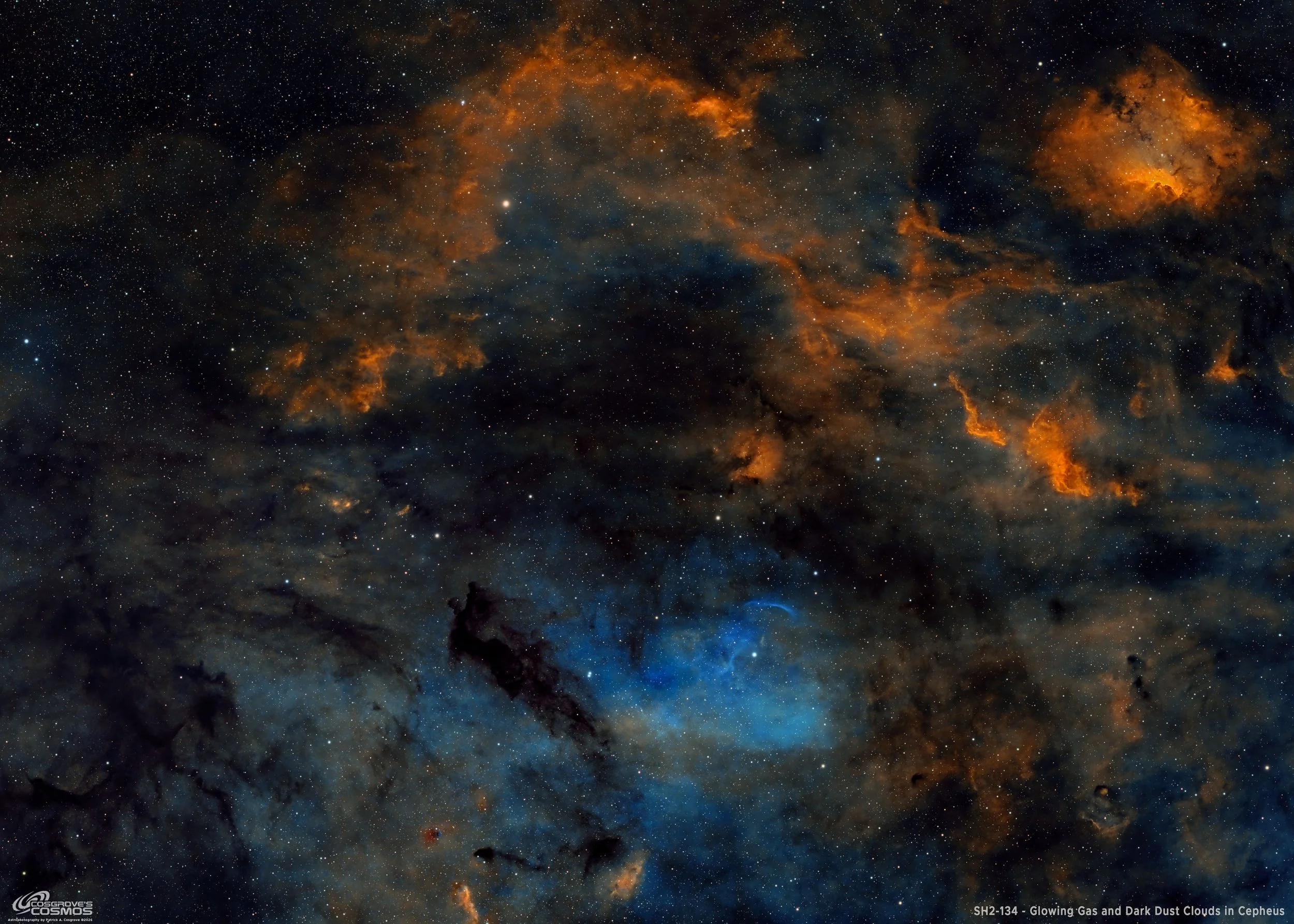
My Image of the SH2-134 region in Cepheus.
🔭 Project Summary
Target: Sh2-134 / Sharpless 134 / LBN 490 — emission nebula complex around Lambda Cephei
Capture Dates: September 6, 11, and 14, 2026
Constellation: Cepheus • Distance: Approximately 2,900 light-years for Sh2-134
Type: Wide-field emission nebula complex with glowing filaments, dark interstellar clouds, and the hot supergiant Lambda Cephei
Imaging Period: September 6–14, 2026 • Total Integration: 17 h 52 m 00 s (SHO narrowband + RGB stars)
Filters: Ha · OIII · SII (Astronomik 36 mm 6 nm) + R · G · B (ZWO 36 mm LRGB Gen II)
Telescope: Askar FRA400 72 mm f/5.6 Quintuplet Air-Spaced Astrograph
Camera: ZWO ASI2600MM-Pro (−15 °C; Gain 100 narrowband, Gain 0 RGB)
Mount: ZWO AM5 on custom steel pier
Processing: PixInsight (SHO narrowband + RGB stars) & Photoshop
Location: Whispering Skies Observatory · Honeoye Falls, NY (USA)
Acquisition Notes: Ha: 68 × 300 s; OIII: 67 × 300 s; SII: 75 × 300 s; R: 14 × 30 s; G: 15 × 30 s; B: 15 × 30 s, all bin 1×1 at −15 °C. Total integration after culling bad or questionable frames: 17 h 30 m narrowband + 22 m RGB.
Image Note: This wide-field SHO narrowband image explores the rich region around Sh2-134 and Lambda Cephei, including the compact emission nebula Sh2-135, numerous Lynds bright and dark nebulae, and Barnard dark clouds such as B169, B170, B171, B173, and B174.
Table of Contents Show (Click on lines to navigate)
Special Note
Welcome to the New Image Processing Page for this project! You got here by following a link in the main Image Project Report, and you can easily return to that by using the back button on your browser.
Abbreviations Used
ACM Astro Color Mixer Script
ACE Astro Contrast Enhancer Script
ASL Astro Star Lab - Prototype tool
ATR Astro Tone Recovery - Prototype tool
BXT BlurXTerminator by RC-Astro
CC Cosmetic Correction
CT Curves Transformation Process
DBE Dynamic Background Extraction Process
ET Exponential Transformation
HT Histogram Transformation
NXT NoiseXTerminator by RC-Astro
MLT Multiscale Linear Transform
PI PixInsight
PS Photoshop
SCNR Subtractive Chromatic Noise Reduction Process
SFS SubFrameSelector
SPCC SpectroPhotometric Color Calibration
STF Screen Transfer Function
STF->HT method – Drag the STF triangle to the base of HistogramTransformation, then apply it to the image to take it nonlinear.
SXT StarXTerminator by RC-Astro
WBPP Weighted Batch Preprocessing Script
🔭 Sh2-134 SHO + RGB Stars Processing Flow
High-level sequence from frame review and WBPP integration through separate nebula and RGB-star processing, masked color refinement, highlight recovery, Astro Star Lab repair and recombination, and final Photoshop output.
Processing this Image
(All Processing is done in PixInsight, with some final touches done in Photoshop)
1. Blink
General
Lots of satellite tracks - easy to handle
Somehow the camera dew heater was not enabled for a couple of nights, and we had very heavy dew. Frames were rejected due to dark dew circles (see below) and halos on stars.
Dew frame sample 1 (click to enlarge)
Dew sample frame 2
Ha
6 frames removed: 4 for dark dew circles, and 2 for clouds. One image had a plane go through it, and I left it in.
OIII
5 frames removed for dew.
SII
7 frames removed: 2 for tracking, 5 for dark dew circles.
Red
7 removed for dew circles.
Green
7 removed for dew circles.
Blue
8 removed for dew circles.
Darks
All frames looked suitable.
Dark Flats
All frames looked suitable.
Flats
All frames looked suitable
2. WBPP 3.01
Reset everything
Load all lights
Load all flats
Load all darks
Select - maximum quality
Reference Image - auto - the default
Select the output directory for the WBPP folder
Enable CC for all light frames
Pedestal value - auto
Darks - set exposure tolerance to 0
Lights - set exposure tolerance to 0
Lights - all set except for a linear defect (this was not needed)
Set for Autocrop
WBPP ran for 37:16. No errors.
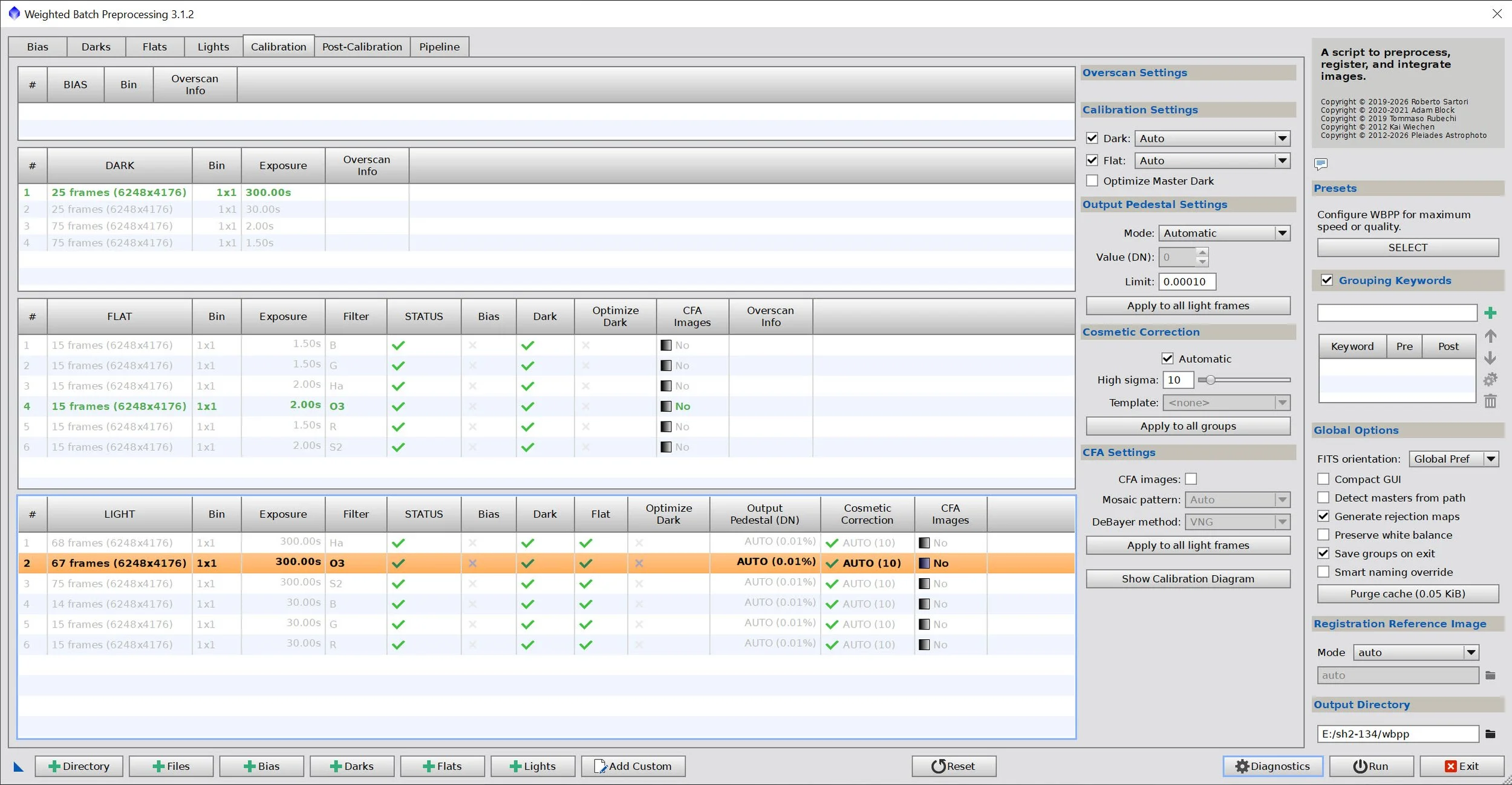
WBPP Calibration View
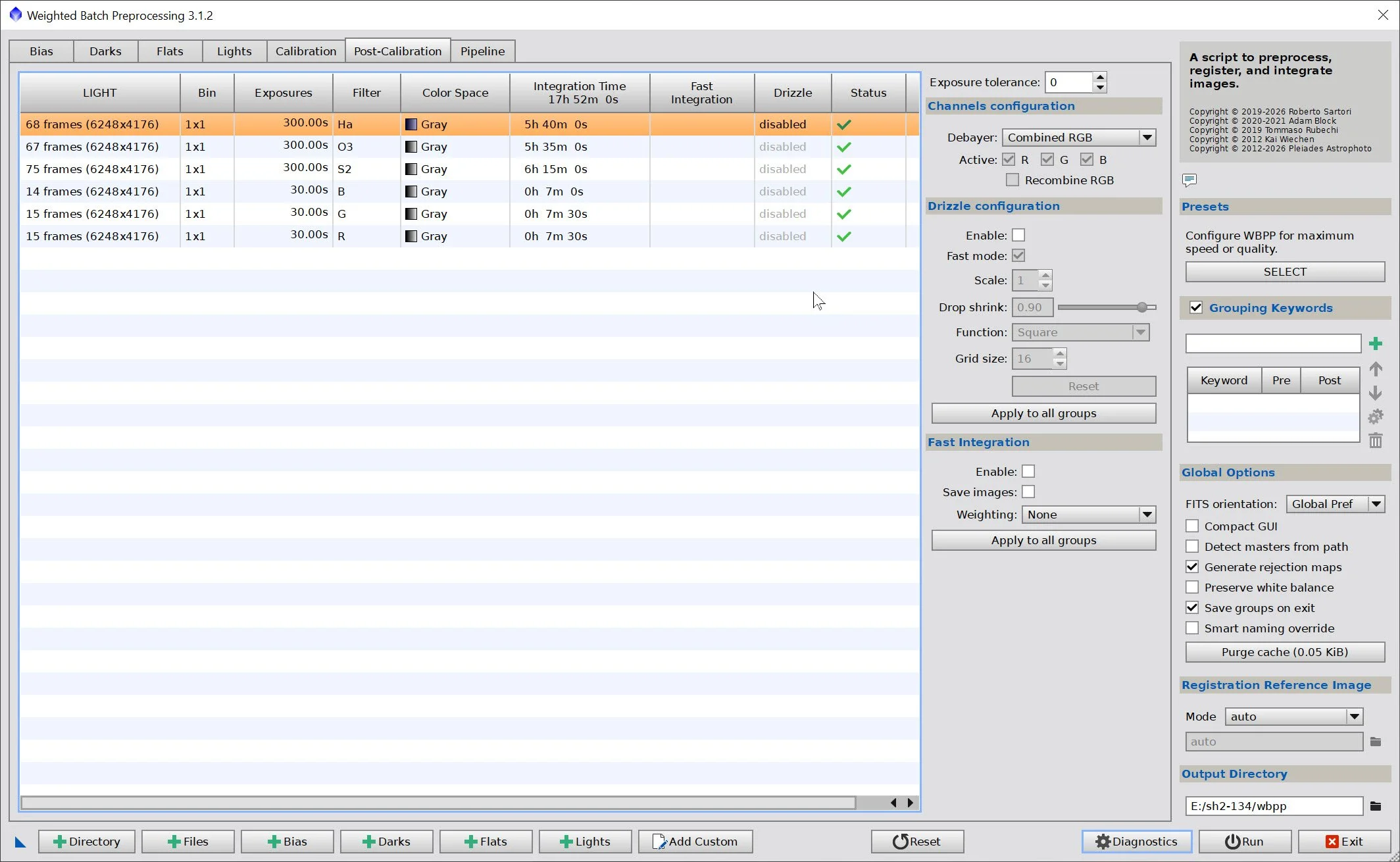
WBPP Post Calibration View
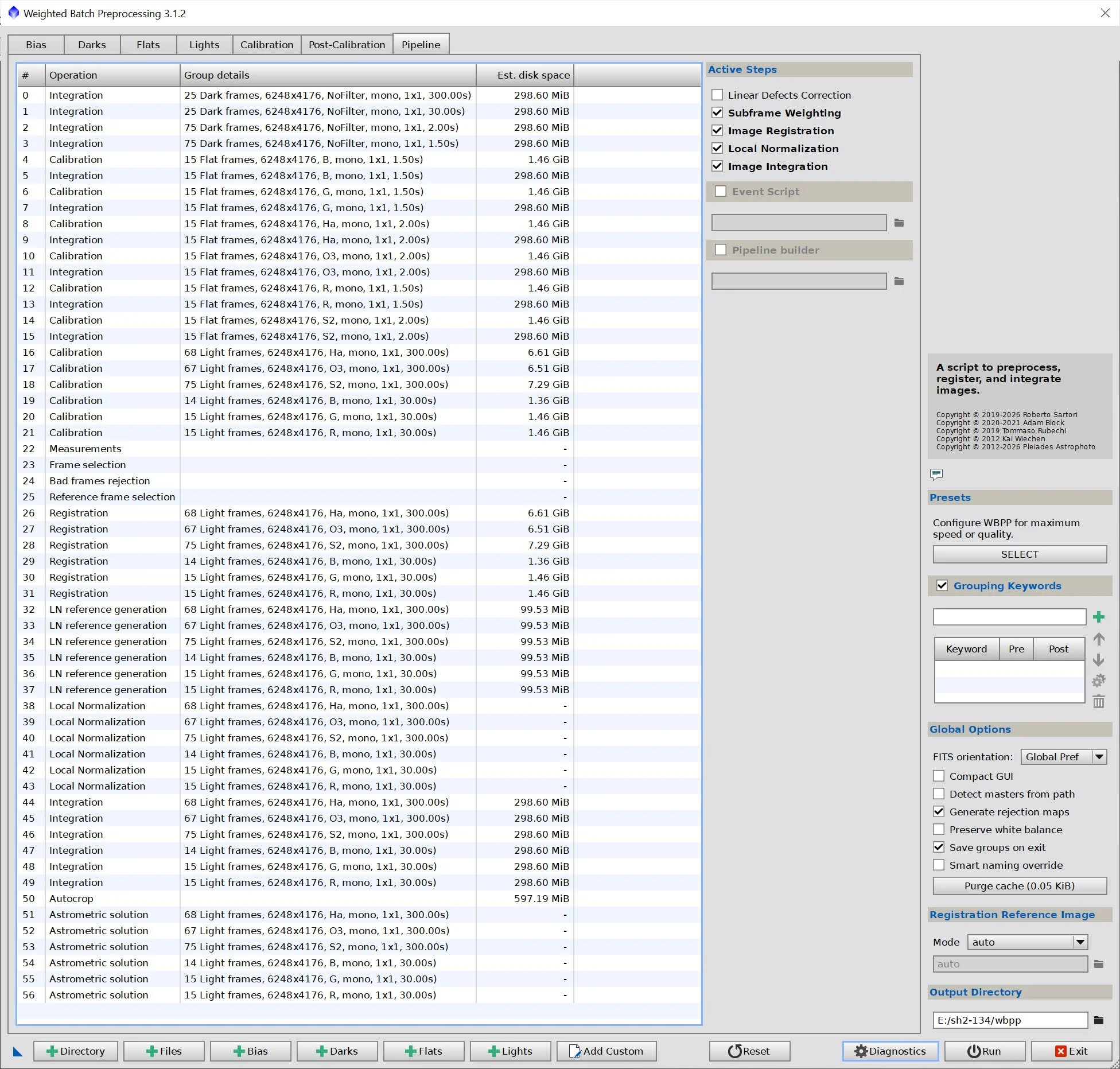
WBPP Pipeline View
3. Load Master Images and Create Color Images
Load all master images and rename them.
Using ChannelCombination, create the Master SHO and RGB color images
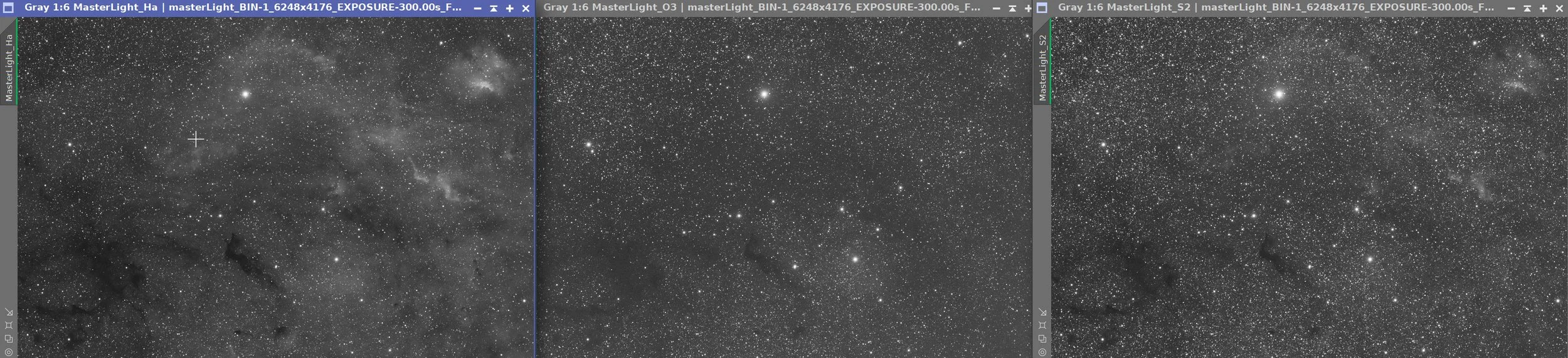
Master Ha, OIII, and SII Images
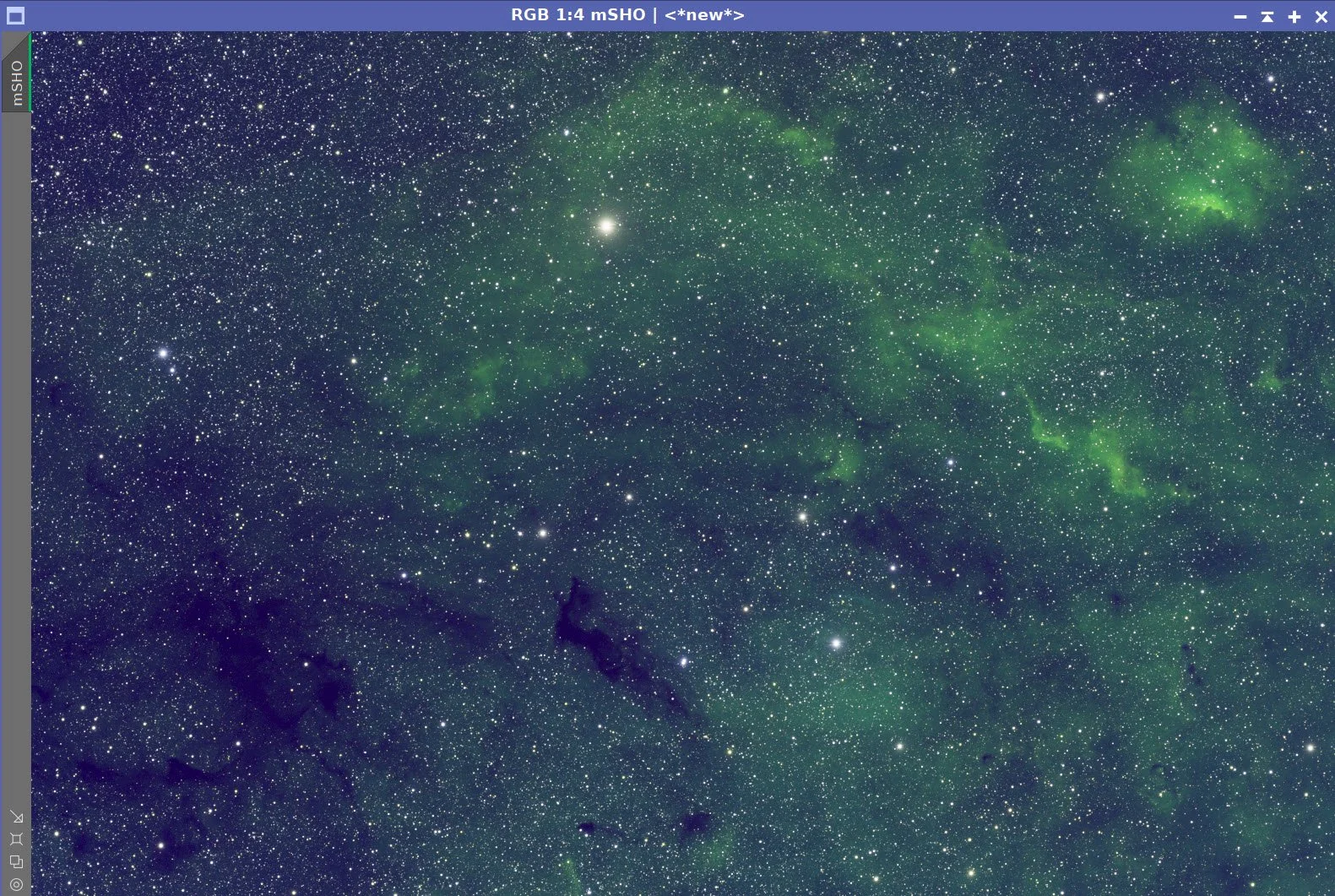
Master SHO image.
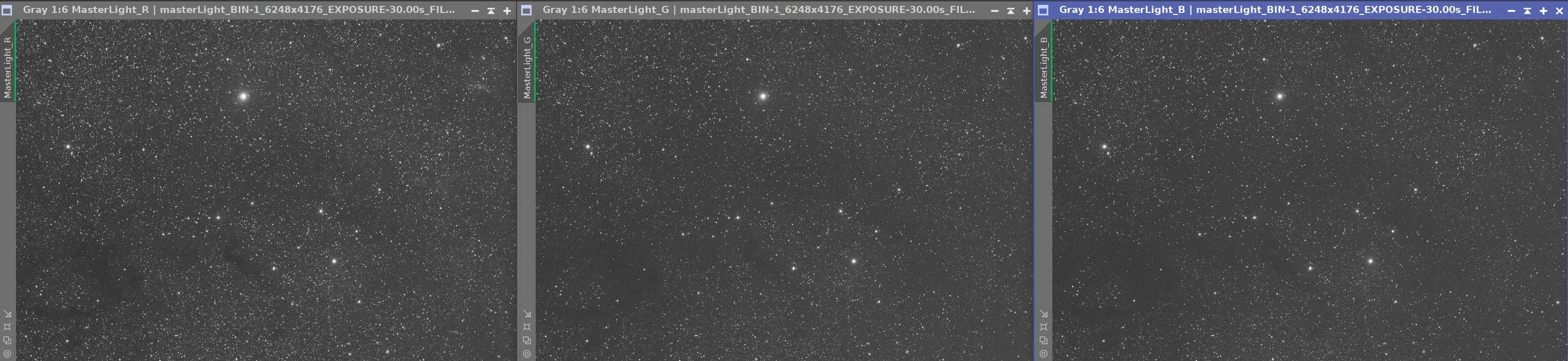
Master R, G, and B images
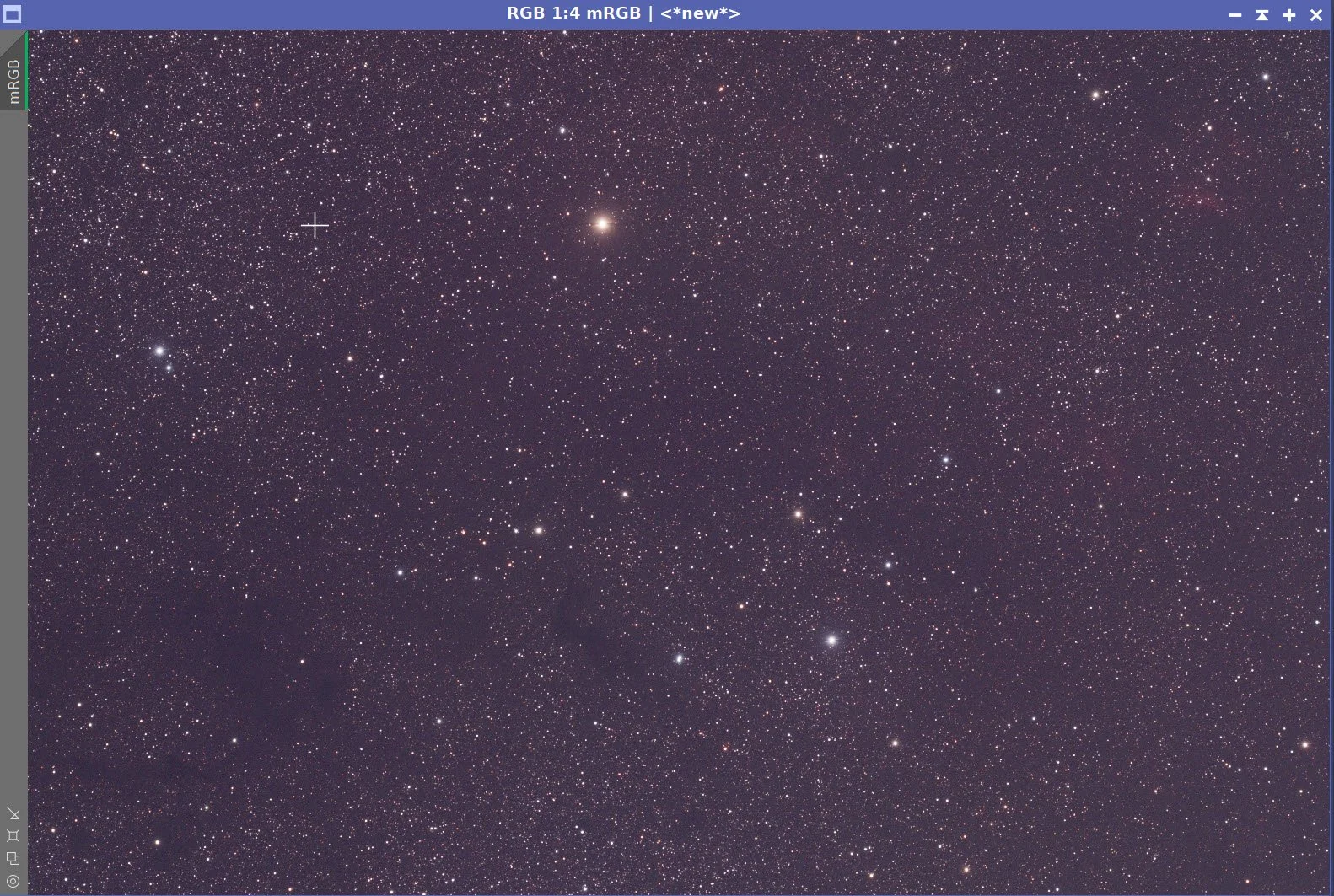
Master RGB color image.
4. Initial Processing of the Linear SHO data
Run DBE, adjusting the sampling plan to avoid dense nebulosity.
Run BXT - correct only. This cleans up the stars at the corners. Not much to do in this image as the scope is very crisp.
Run PSFImage script to measure star sizes. X = 2.49 Y = 2.32. This will influence the values used in BXT.
Run Full BXT - I am using the default terms for BXT for the stars. See the BXT Panel Snapshot below.
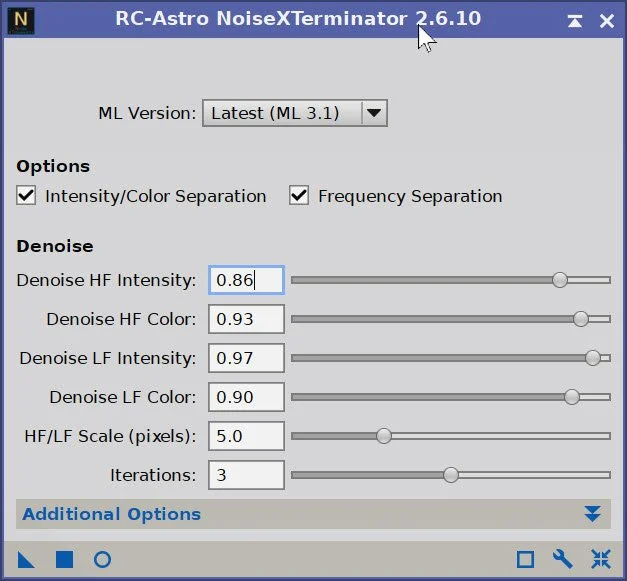
Run NXT V3 - see params from snapshot below.
Run SXT and don’t save the SHO stars. I will be using RGB stars, so there is no need to keep them.
SHO DBE Sampling Plan (click to enlarge)
SHO Before DBE. (click to enlarge)
SHO After DBE (click to enlarge)
Background model subtracted by DBE (click to enlarge)
Measuring Star Sizes with PSFImage Script (click to enlarge)
BXT Settings Used. (click to enlarge)
NXT Panel used. (click to enlarge)
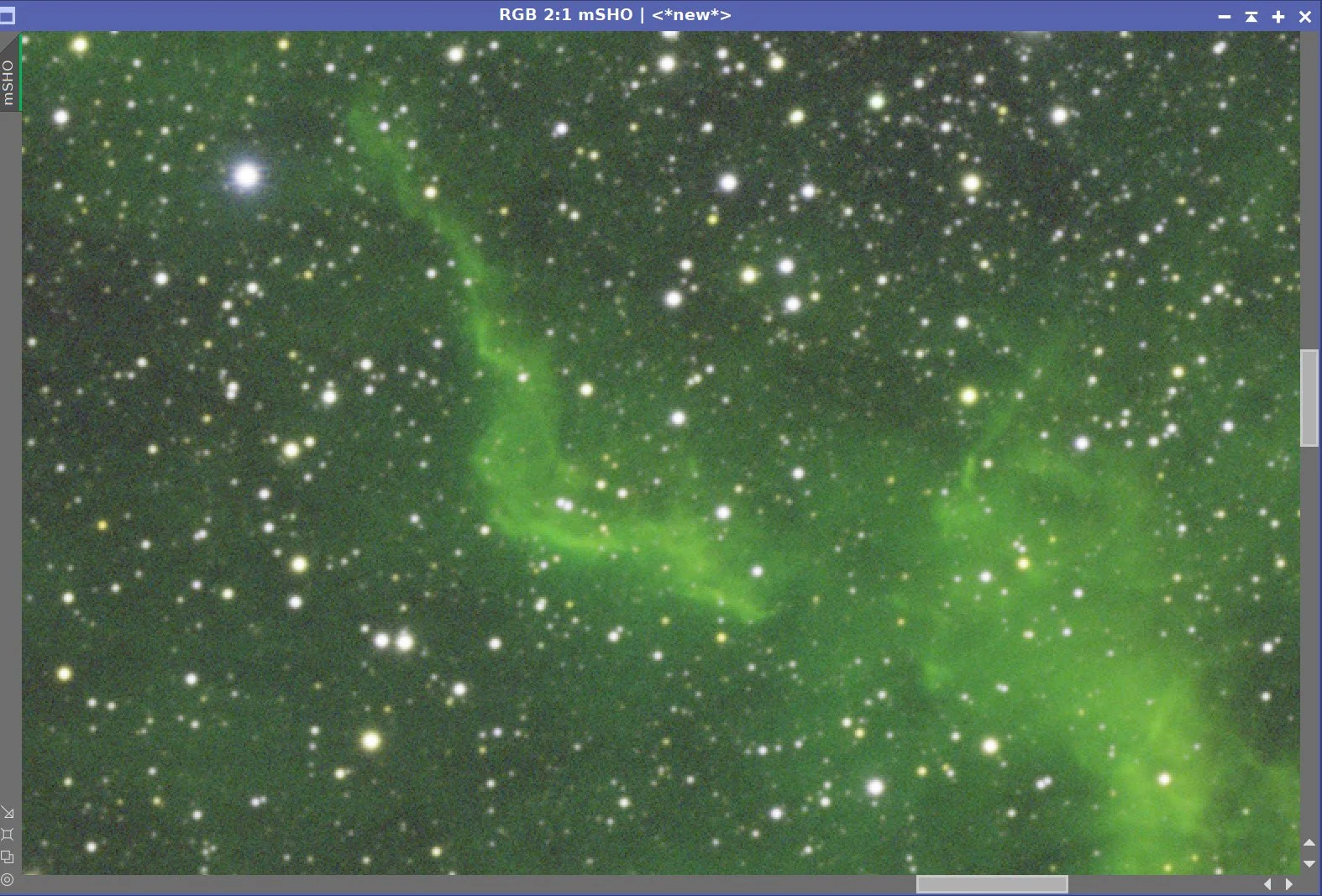
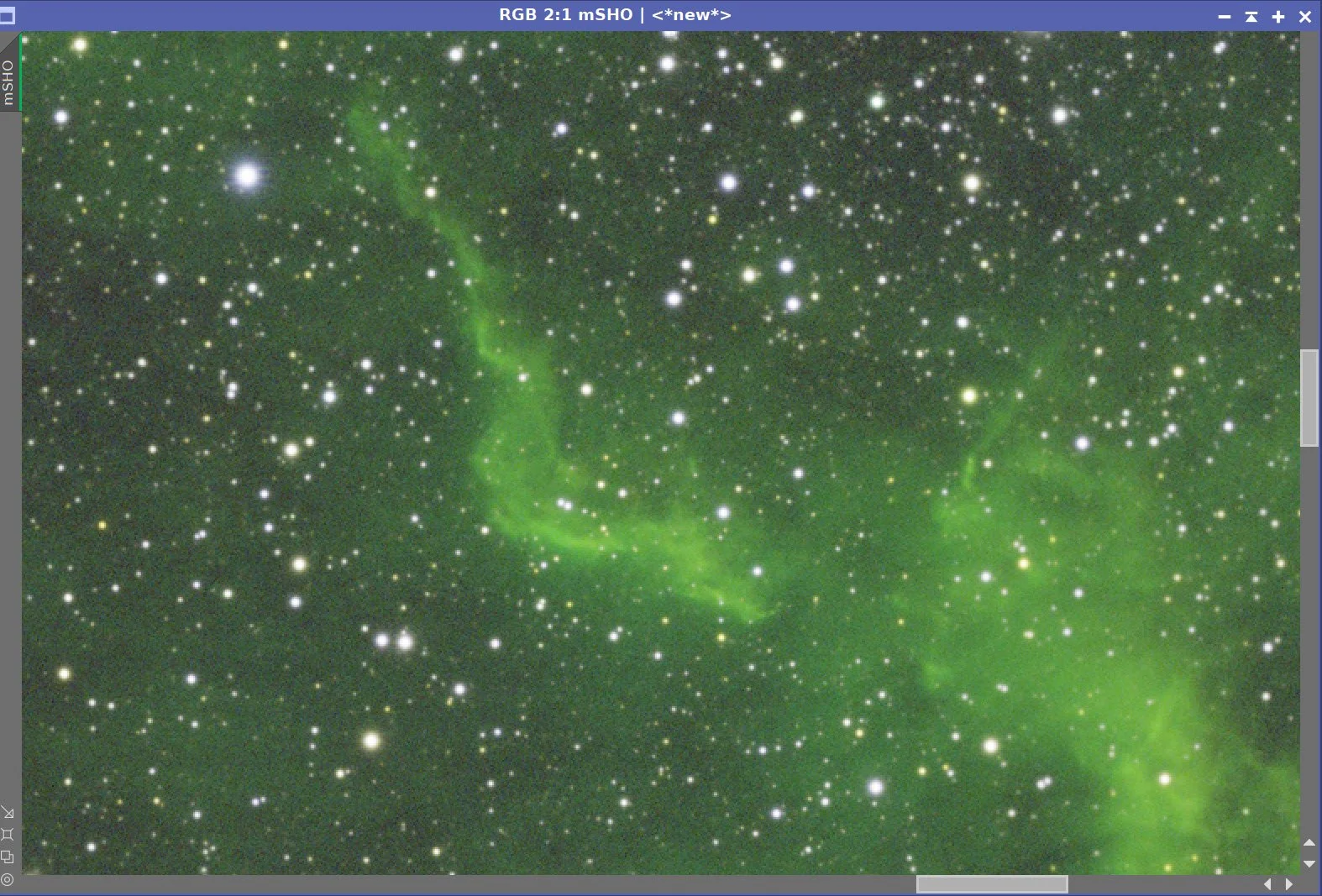
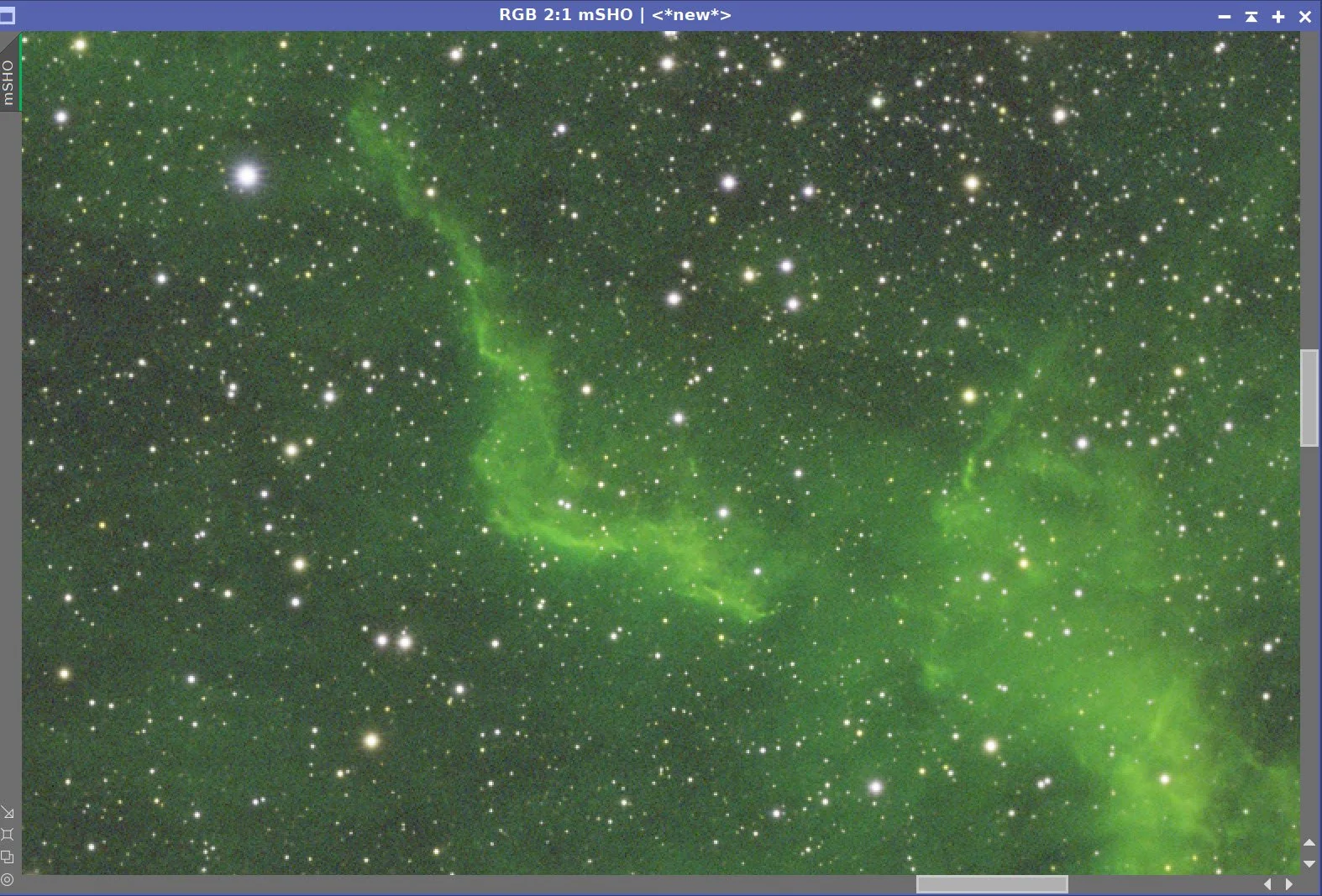
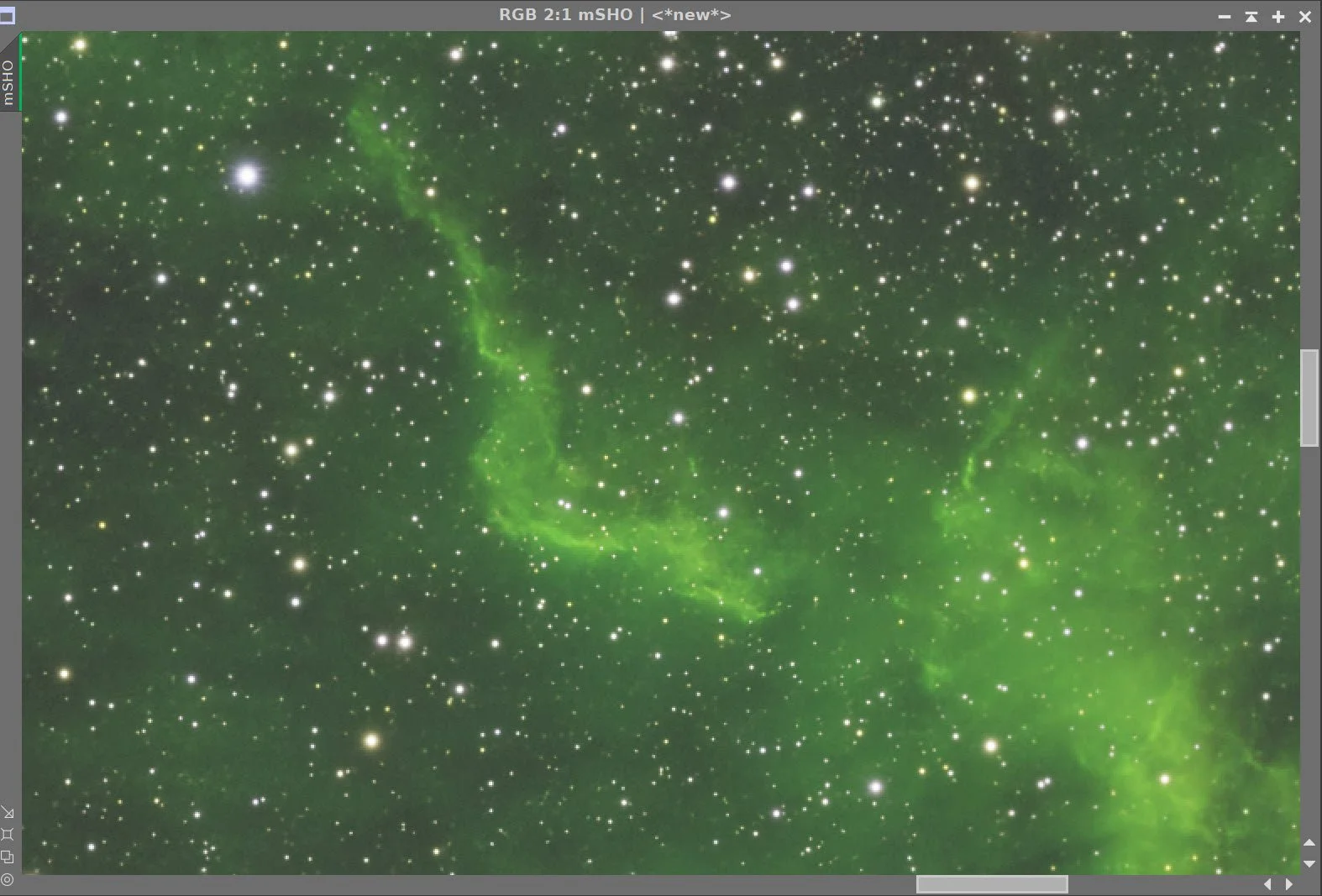
Master SHO Before BXT Correct Only, After BXT Correct Only, After BXT Full, After NXT
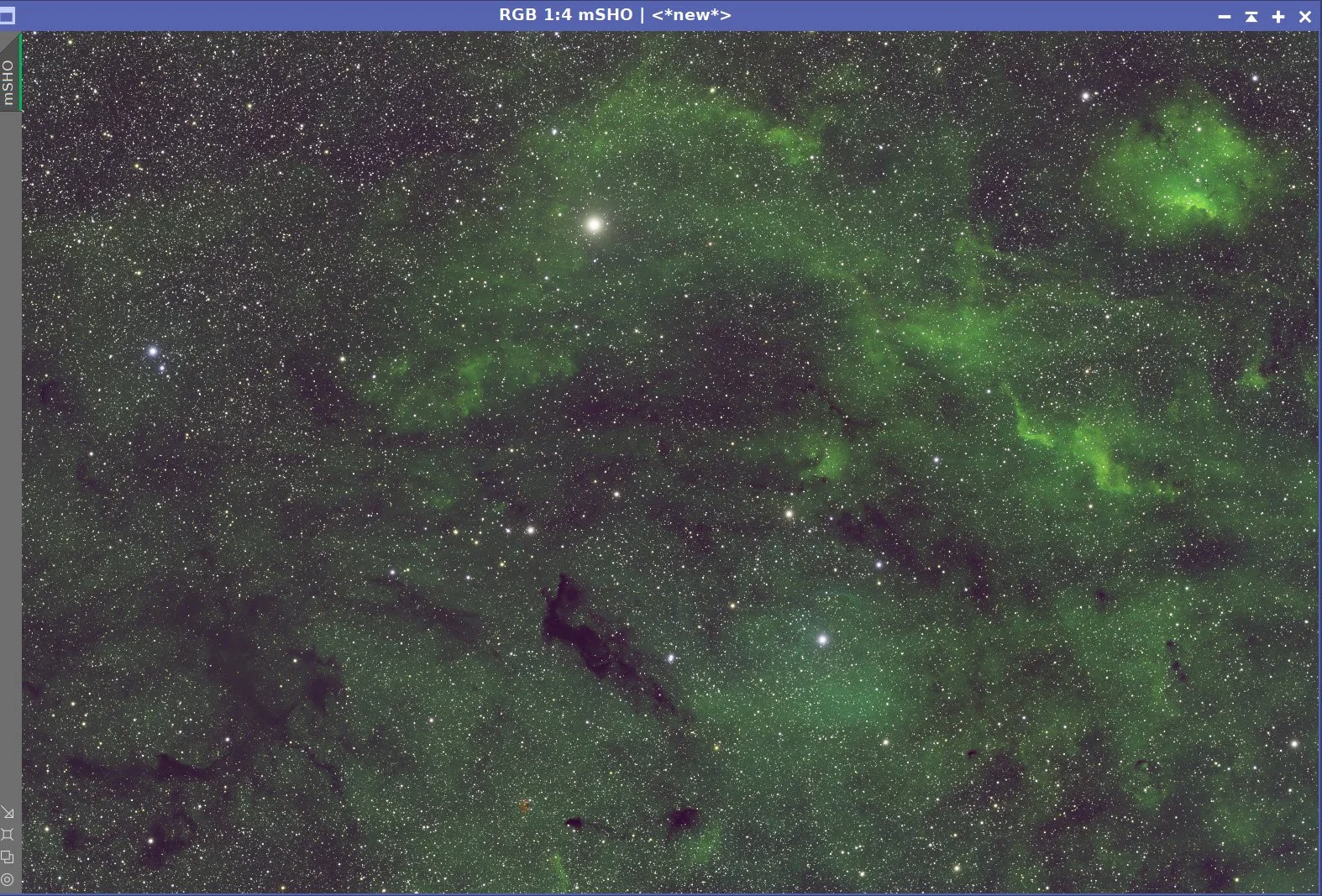
Final Master SHO Image
Master SHO Starless Image (click to enlarge)
5. Process the Linear RGB Data
Run DBE for the RGB linear image. Use subtraction for the correction method. Choose a sampling plan that avoids the nebulae (see below)
Run BXT - correct only. This cleans up the stars at the corners. It also cleaned up a lot of the weird star flare that I had - but not all of it.
Select a preview rectangle that samples the background sky, and then set up and run SPCC.
Use the Ideal curve
Use ZWO R, G, & B filter curves,
Run the PSFImage script to measure star sizes. X = 1.92, Y = 1.81. This will influence the values used in BXT.
Run Full BXT - I am using an enhanced set of values to shrink stars more. These are about double the measured star sizes. I failed to capture a screenshot of the BXT panel and the BXT series, but I used a value of about 4.0 to clean up the star images
Run NXT V3 - see params from snapshot below.
Run SXT and don’t save the RGB starless image.
Master RGB DBE Sampling Plan (click to enlarge)
Before DBE (click to enlarge)
Master RGB after DBE (click to enlarge)
Master RGB background model subtracted by DBE (click to enlarge)
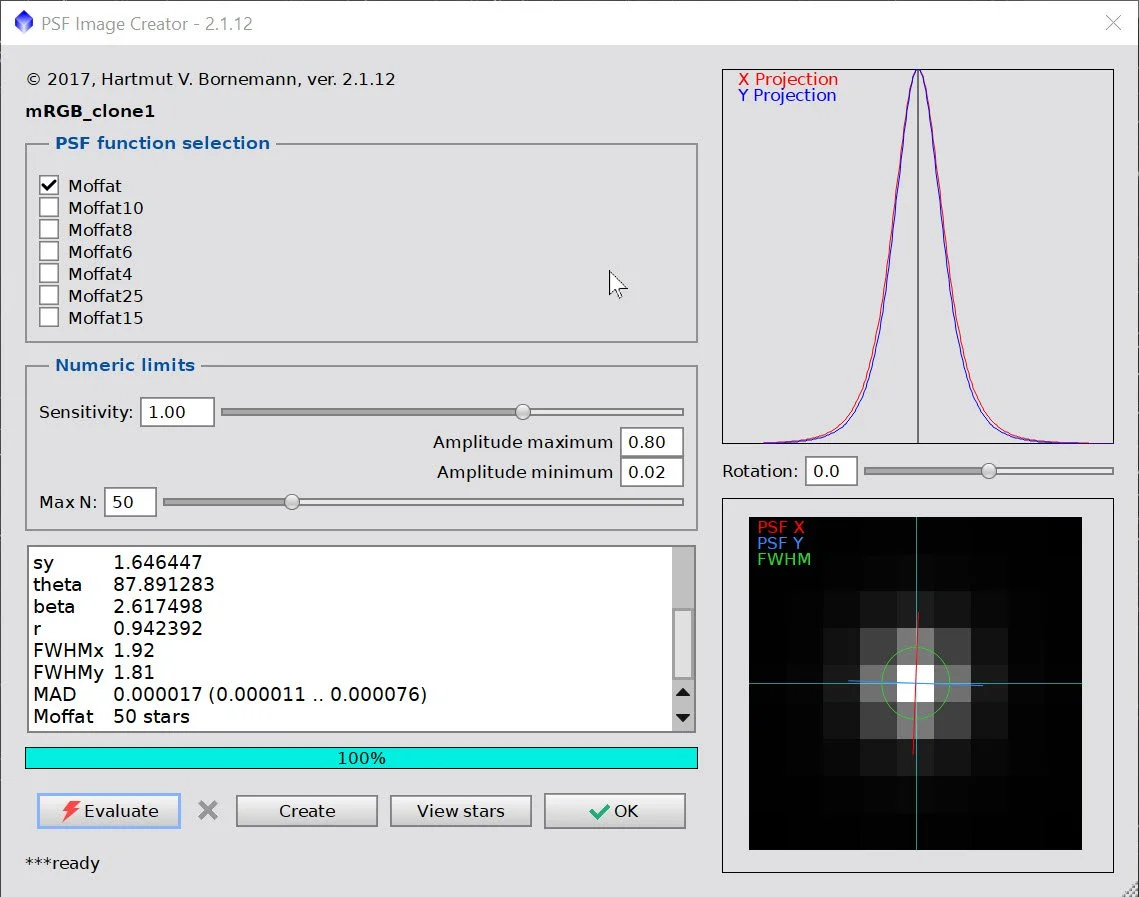
PSFImage Panel display for this image.
Measuring RGB star sizes.
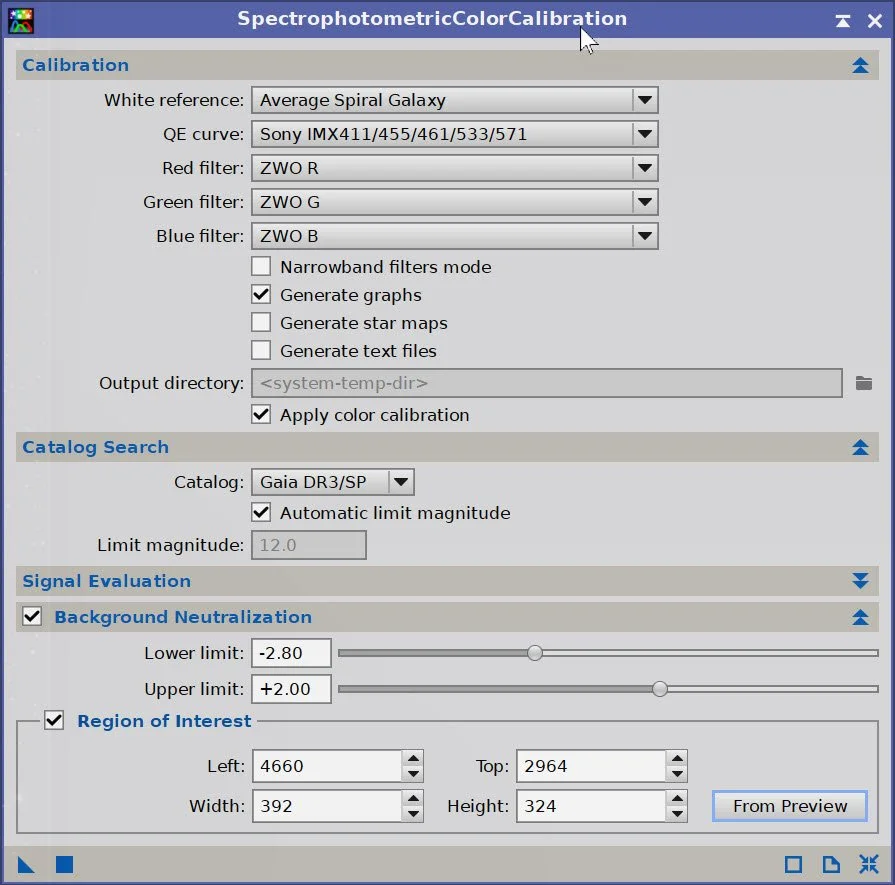
SPCC Panel settings.
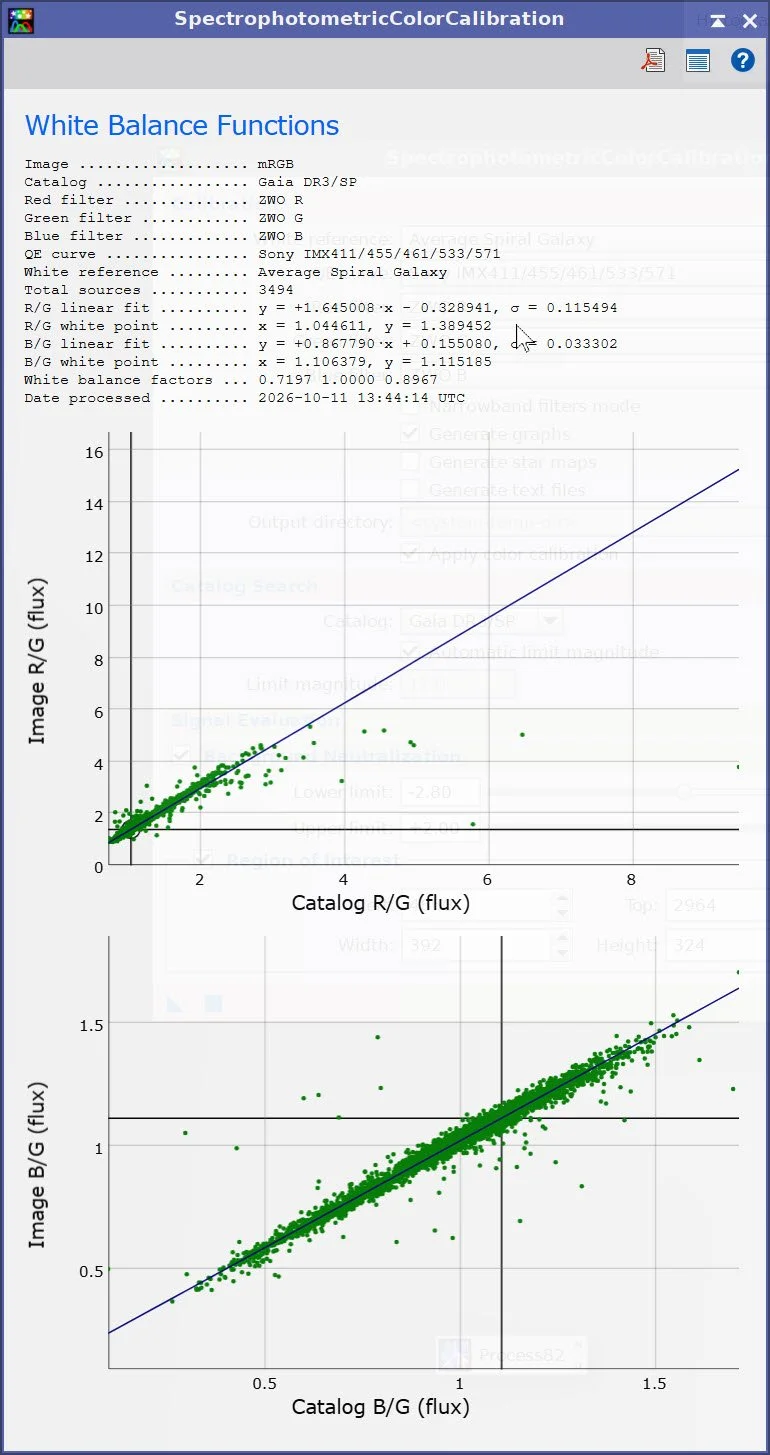
SPCC Regression Results.
Master-RGB Before SPCC (click to enlarge)
After SPCC (click to enlarge)
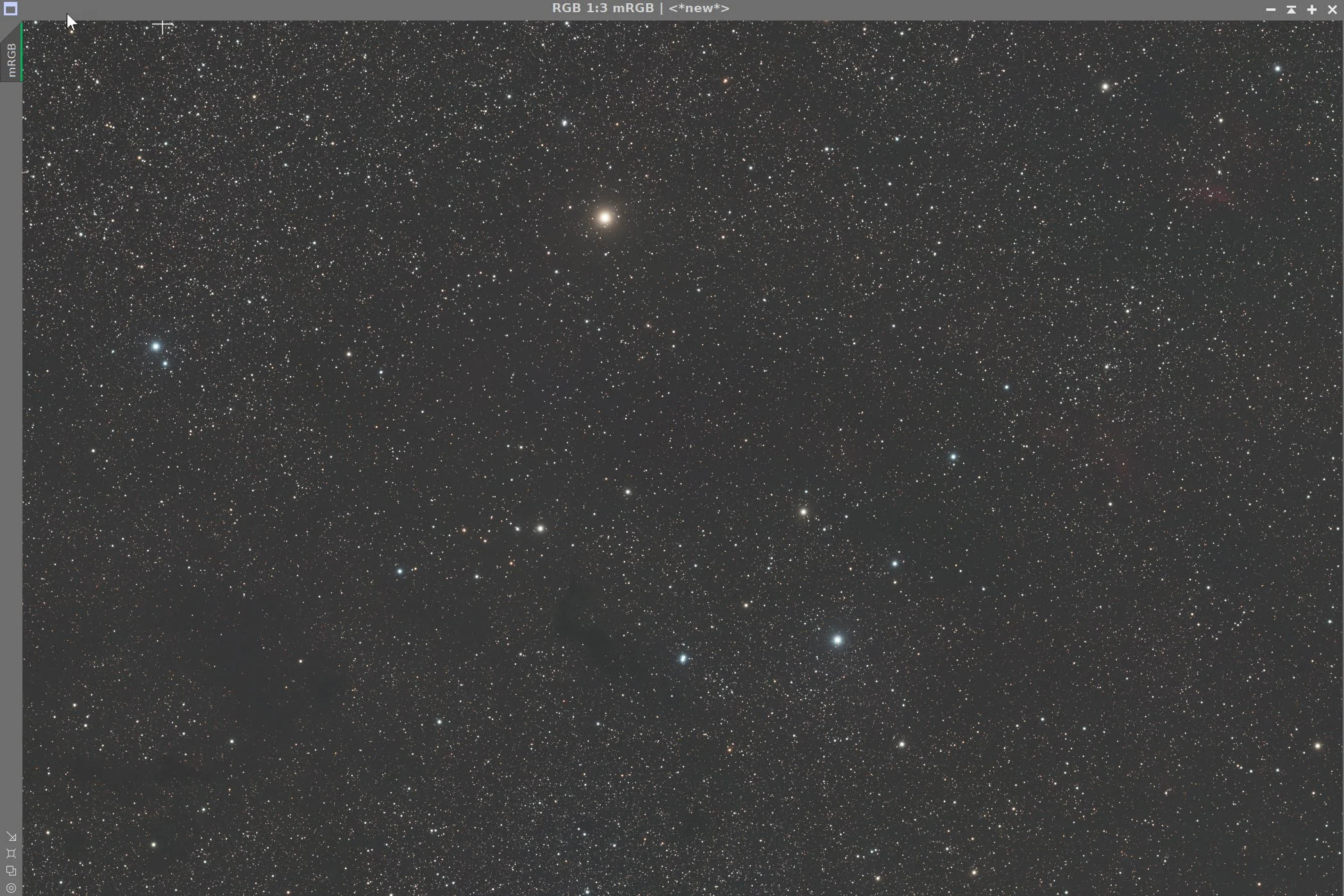
Final Master RGB image - Before Star Removal.
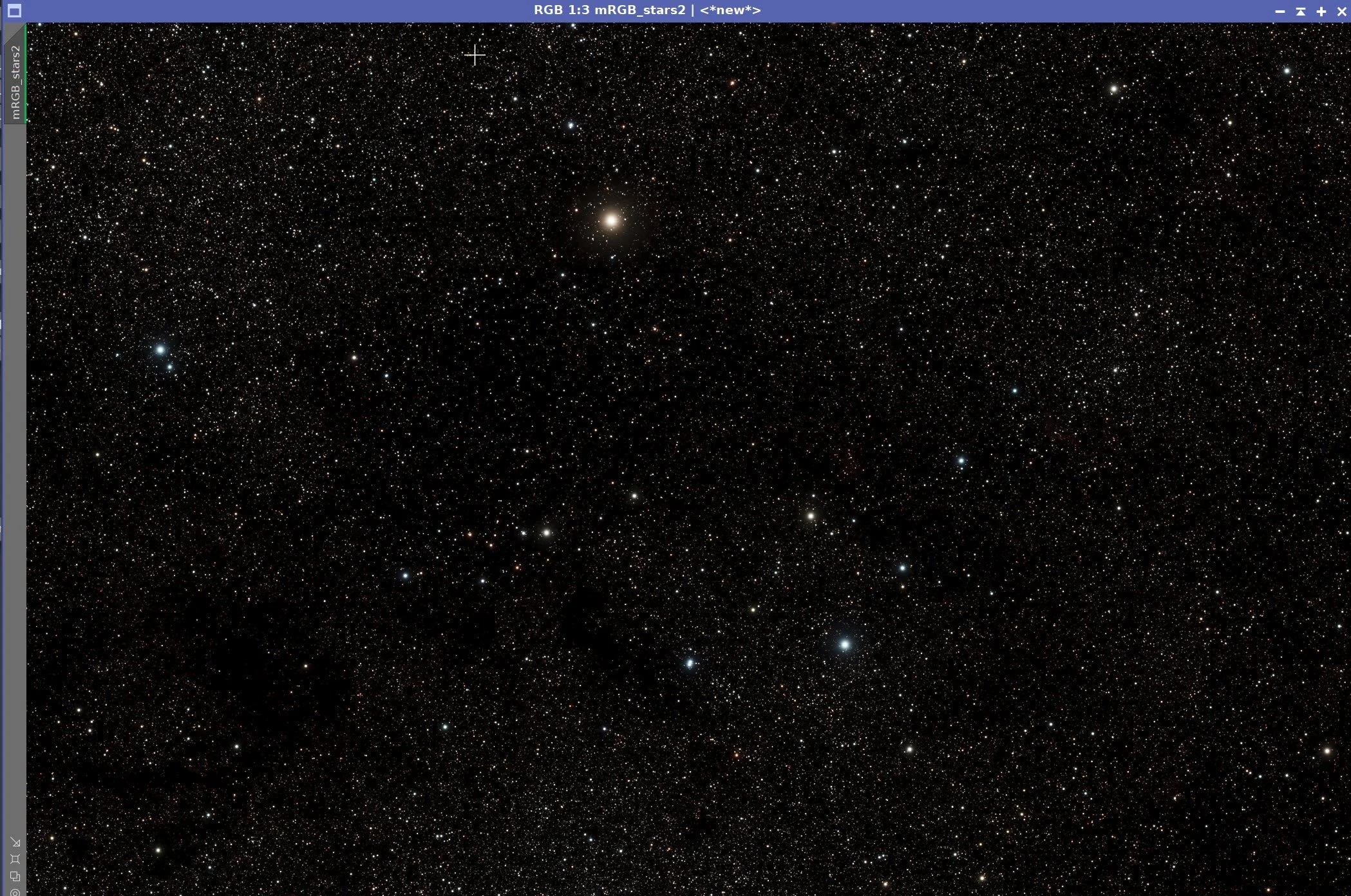
Master RGB Star image after SXT.
6. Keep the RGB Stars Nonlinear - For Now…
At this point in the process, I would stretch my stars and then take them nonlinear. Now I leave them linear, then stretch and combine the stars and starless images at the end of the process using my Astro Star Lab tool.
7. Take the Starless SHO Image Nonlinear
Use the STF→HT method to take the SHO starless Image nonlinear.
Nonlinear SHO image
8. Process the Nonlinear SHO Starless Image
This is the big meaty step of this process. In this section, I will focus on getting Green and Magenta under control, nailing the tone scale and color separation, doing masked warm/cool refinement, and then ACM/ACE polish.
Create the WarmMask
Use the ColourMask Process with a Start Hue of 328 and an end hue of 68, with a blur of 5
Apply CT to boost the mask
Create the CoolMask
Use the ColourMask Process with a Start Hue of 162 and an end hue of 259, with a blur of 5
Apply CT to boost the mask
Apply SCNR Green at 0.85 to reduce green in the image.
Invert the image (make magenta regions look green)
Apply SCNR Green at 0.85 to reduce the amount of green in the image.
Invert the Image
Apply CT for Tone and Color.
Apply SCNR for Green at 0.85. There was still too much green after the CT adjustment, so now it looks much better.
Apply the Warm Mask
Apply CT to adjust color and saturation
Apply the CoolMask
Apply CT and adjust cool-color saturations
Apply a global CT to darken
Use ACM to fine-tune the Cool colors and darken the Warm colors
The orange areas have some highlights that look a little compressed, so I used my Astro Tone Recovery tool to pull back some compression in the highlights and emphasized the recovered detail there as well.
Then I did another NXT run. (params used can be seen below) The weak-signal areas have a lot of noise, and NXT has already done what it can, so this step didn't add much, but I figured it was worth another pass.
Because of the noise grain in the image, I wanted to go super light with ACE to enhance contrast. Just a smidge of Clarity and Dehaze helped, but I stayed away from Texture adjustments.
Do another ACM adjustment focusing on the orange colors.
Do a CT to darken.
Export the image to Photoshop and do some targeted Lasso color mixer and curve work.
Save the Photoshop-adjusted starless image and reopen it in PixInsight for star recombination.
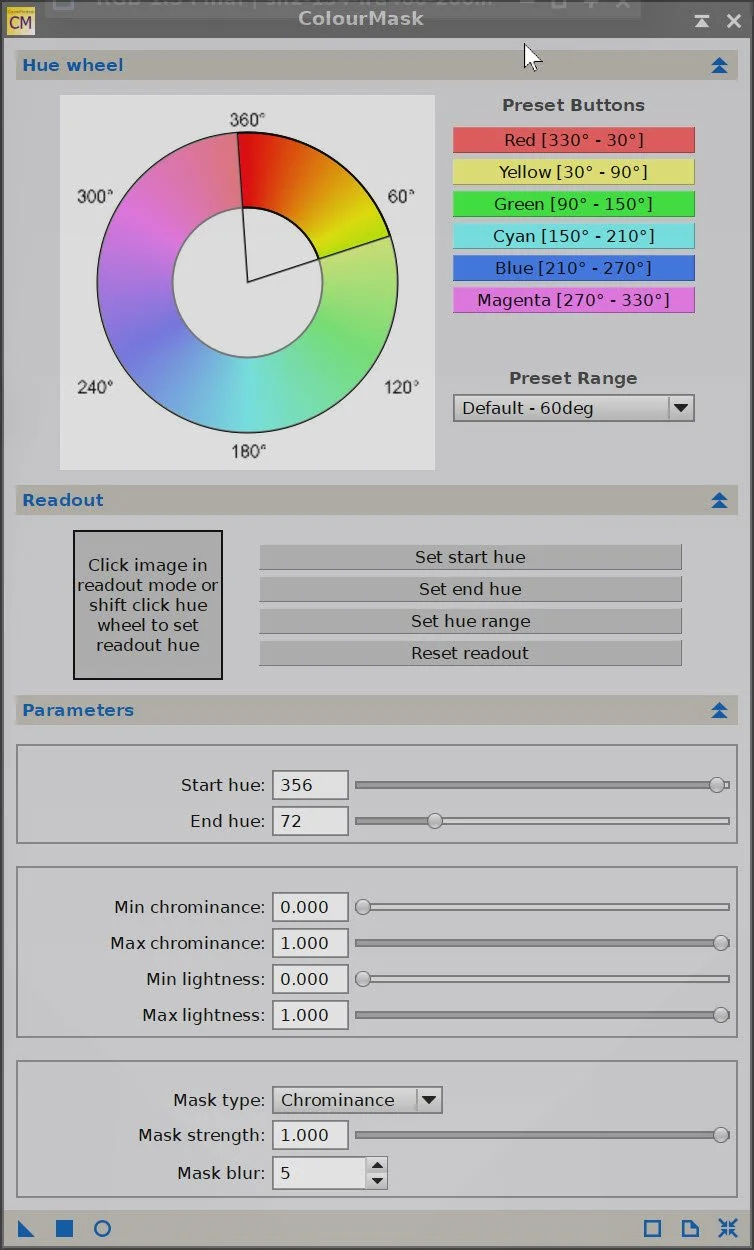
Params used to create the initial WarmMask
Initial WarmMask (click to enlarge)
WarmMask after CT Boost (click to enlarge)
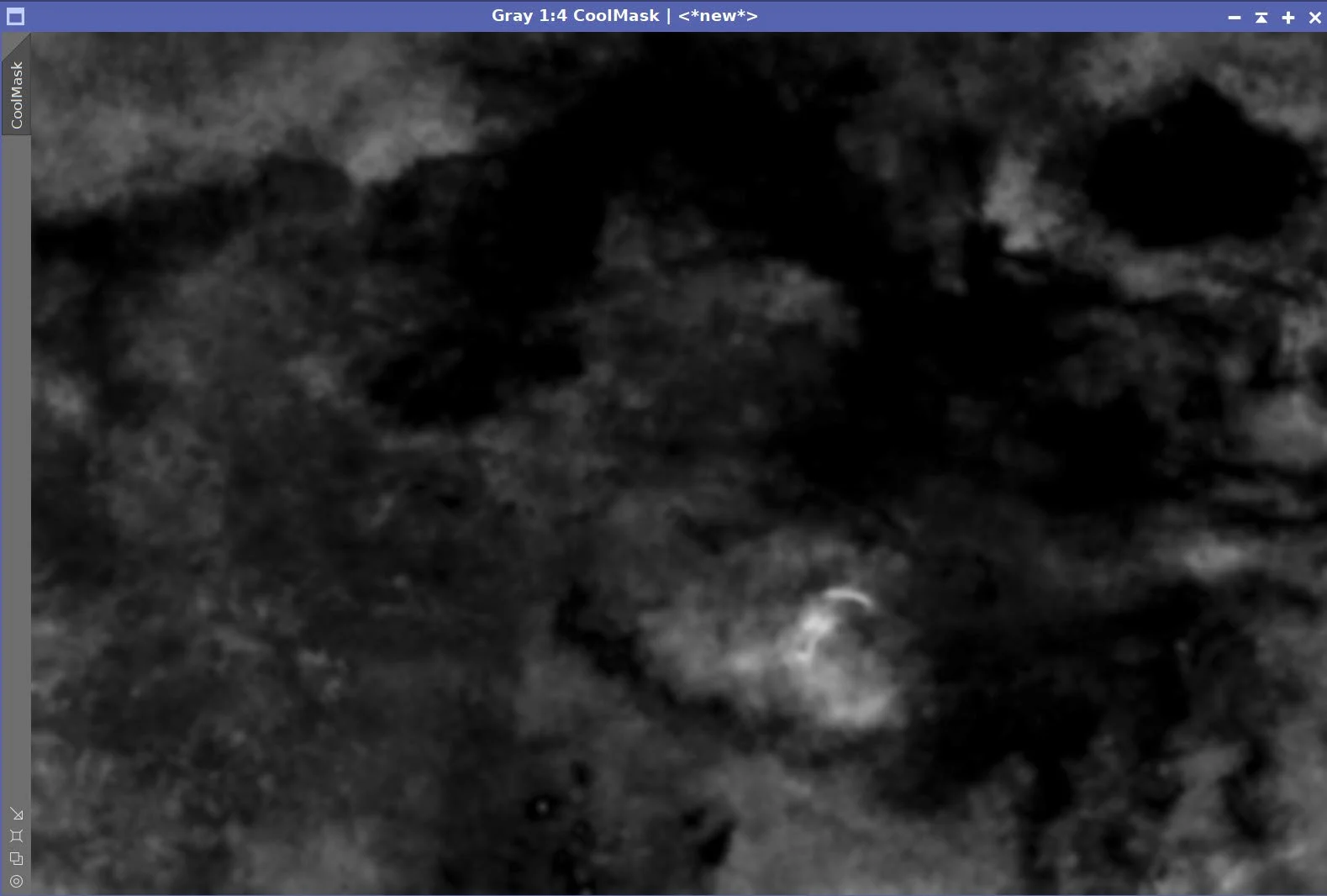
The Params used to create the initial CoolMask
Initial SHO image(click to enlarge)
Initial CoolMask (click to enlarge)
CoolMask after CT boost (click to enlarge)
Apply SCNR to the Green channel (Click to enlarge)
Invert the image (click to enlarge).
Invert the image again (click to enlarge)
Apply SCNR Green again. (click to enlarge)
After CT with the CoolMask (click to enlarge)
FIne tune the blues with ACM (click to enlarge)
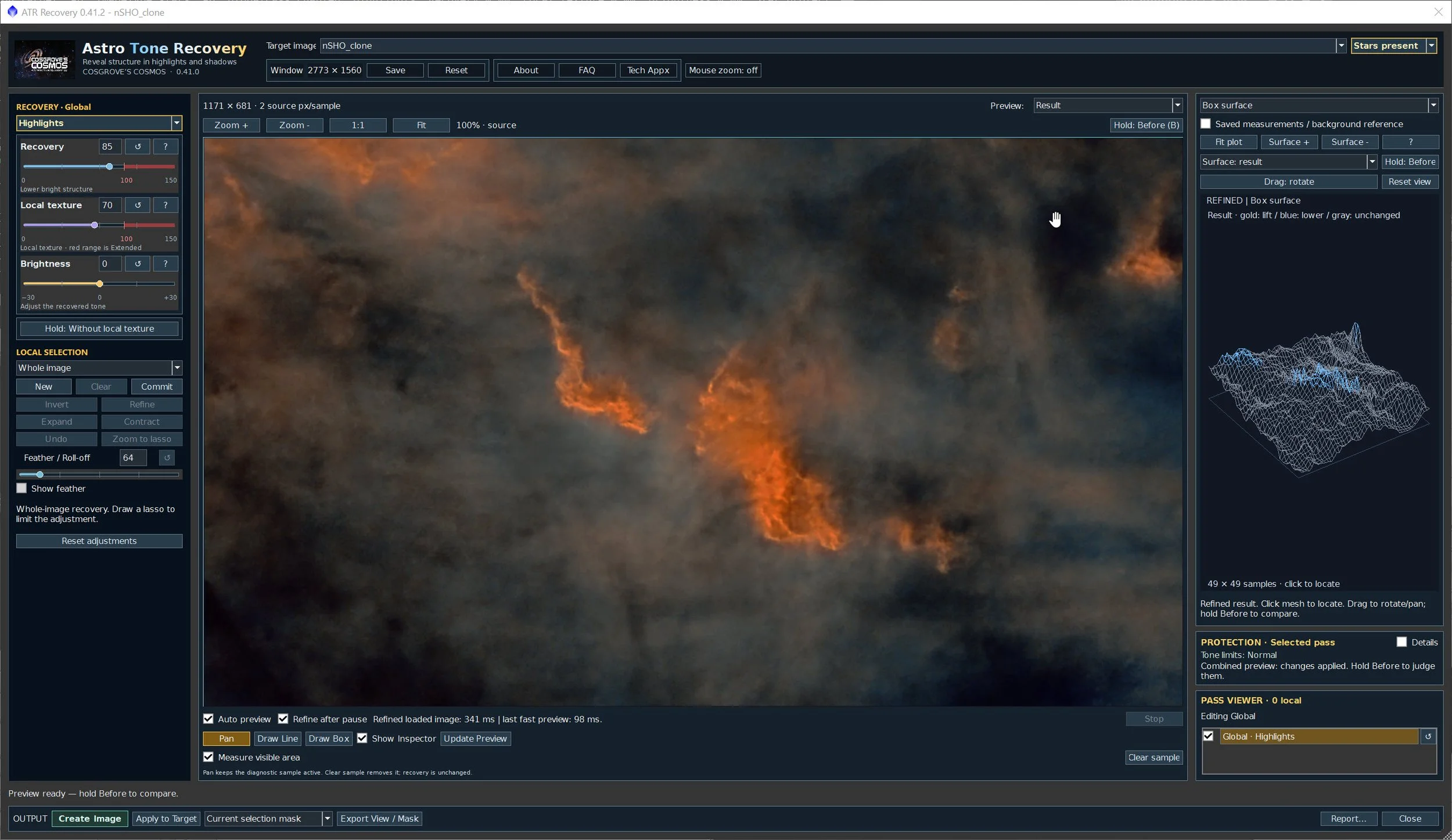
Using the ATR Prototype to enhance compressed highlights areas.
Before ATR (click to enlarge)
NXT Params used (click to enlarge)
Modest Application of ACE (click to enlarge)
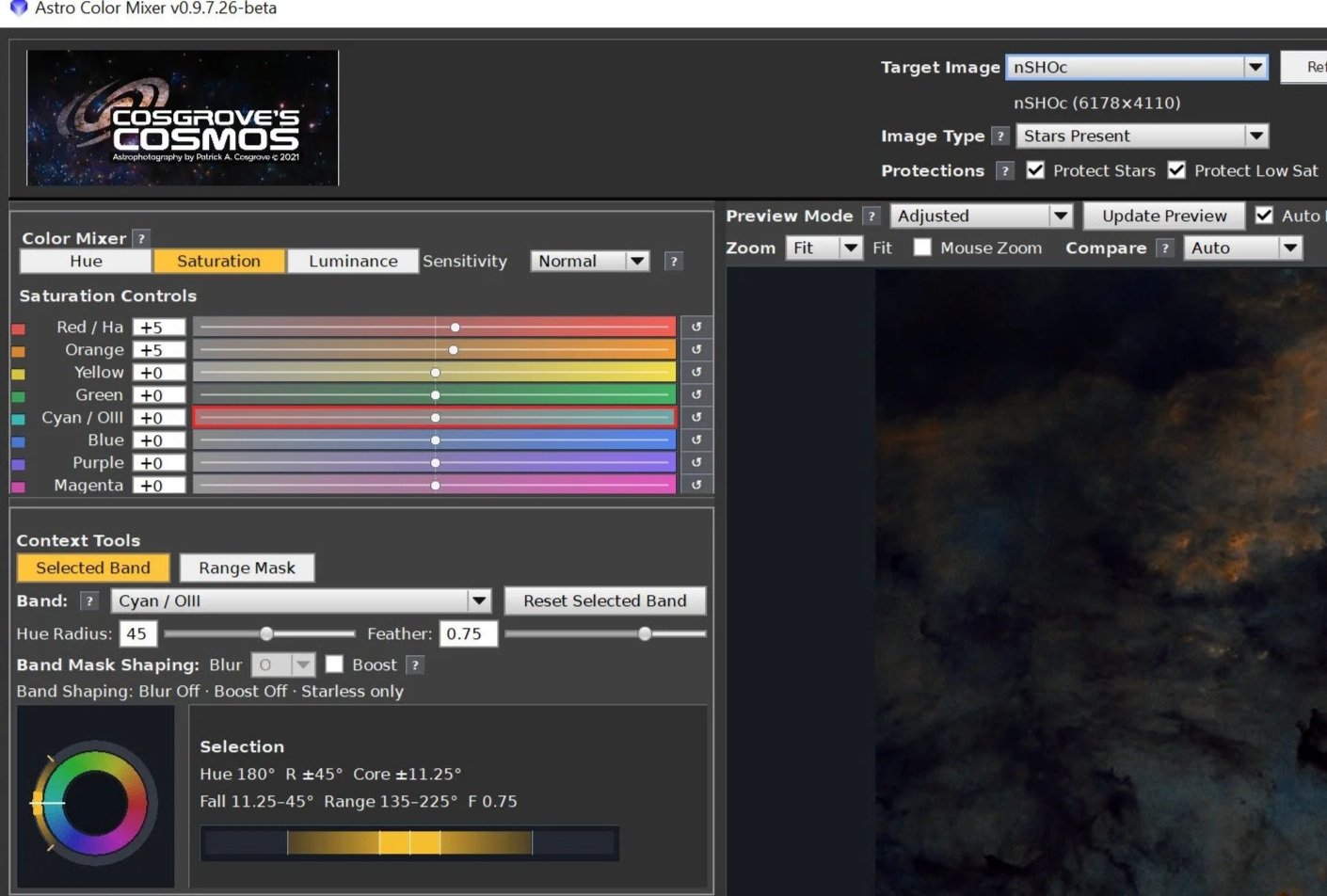
Take another pass with ACM focusing on the warm tones.
CT Adjust (click to enlarge)
Apply SCNR to the Green channel again(click to enlarge)
Apply CT (click to enlarge)
After CT with the WarmMask (click to enlarge)
Apply CT (click to enlarge)
After ACM (click to enlarge)
Global CT Adjustment(click to enlarge)
After NXT Adjustment (click to enlarge)
After ACE. (click to enlarge)
After ACM adjustment #2 (click to enlarge)
9. Add the Stars Back In
Using the prototype Astro Star Lab Script, run it with the RGB Stars-only image.
Once the app finished the analysis and created the initial stretch, I added the starless image and assessed the stars' look.
These look a little weak to me, so I played with the star presence and color saturation sliders to get the look I liked.
Then I looked at the stars that the analysis had flagged. Most of these were the flare problems that I assume are dew-related. About 60 of the brighter stars had been flagged. I then let the automatic fix take a crack at fixing them and approved the ones that looked good.
Stars were then fixed.
Finally, I had the tool output the composed star and starless image.
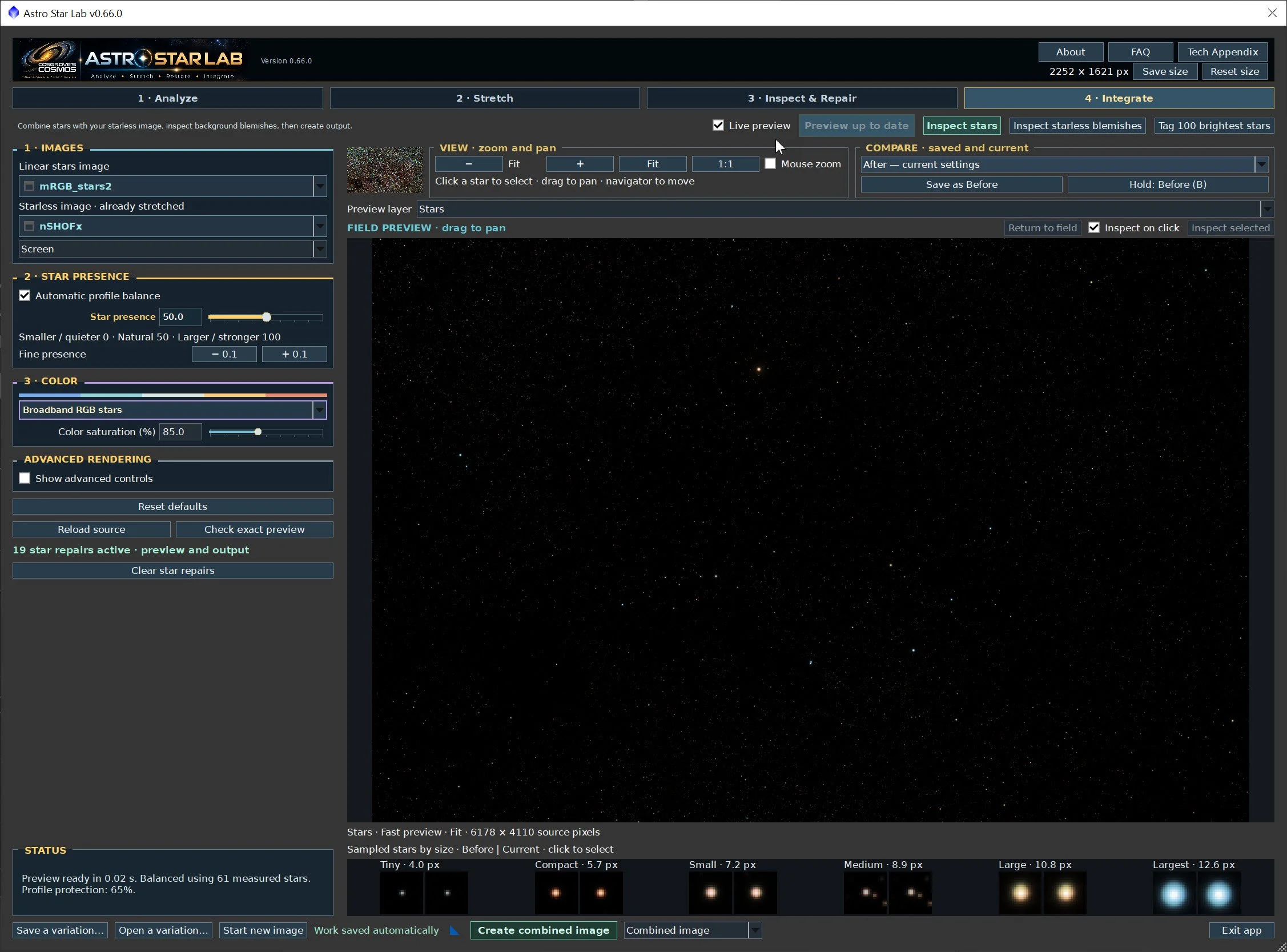
The initial star stretch.
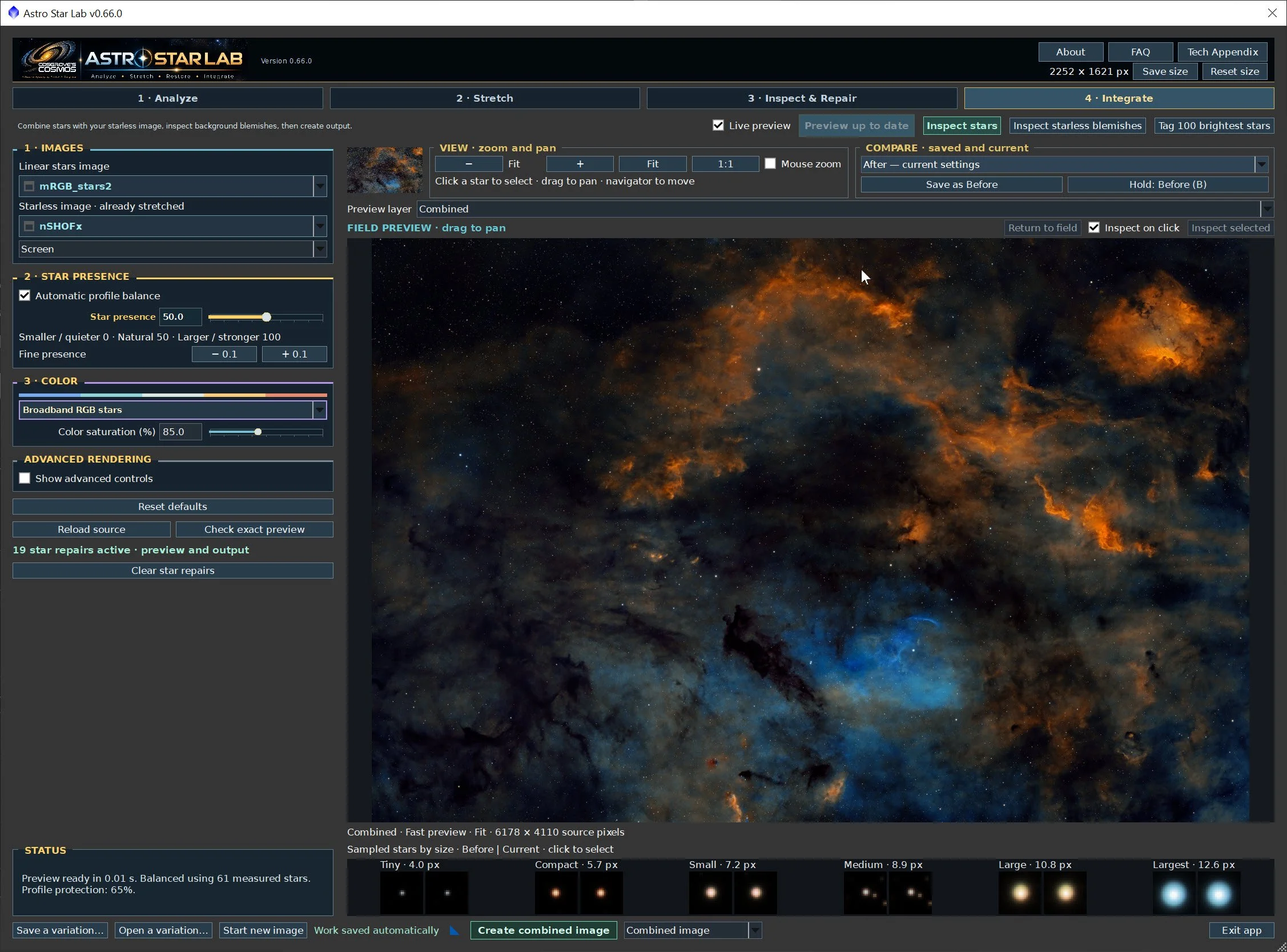
The background starless image has been added back in.
The stars looked a little weak so I boosted the presence and color boost
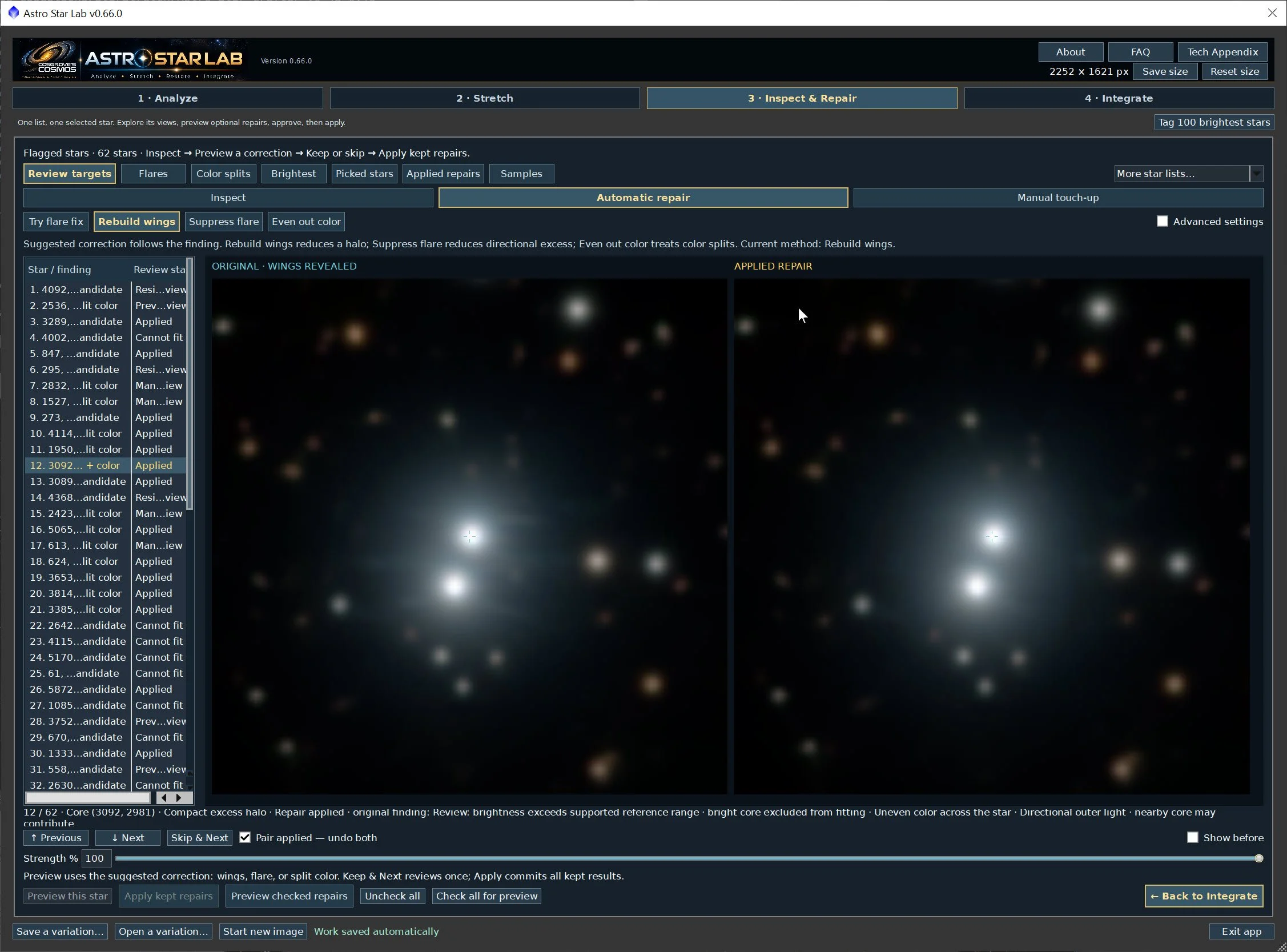
Example of a repaired star. The flare artifacts in this overlapping group of stars have been reduced.
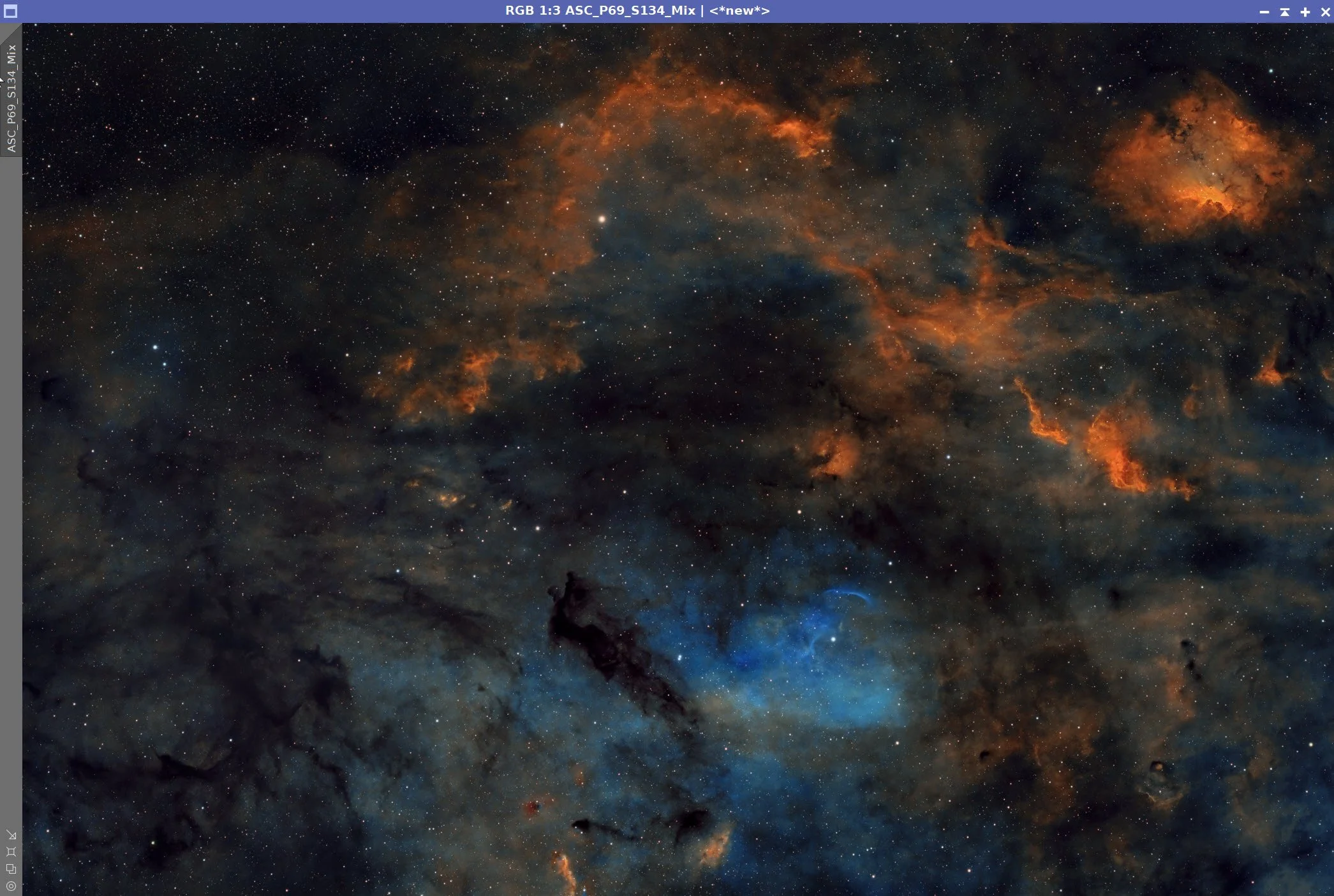
Final Image with stars
10. Export the Image to Photoshop for Polishing
Save the image as a 16-bit unsigned TIFF and move it to Photoshop
I changed the final image's aspect ratio to 7:5 so I could clip off the left side, which was a little boring, without losing anything at the top or bottom. Added Watermarks.
Exported Clear, Watermarked, and web-sized JPEGs.
11. The Final Image!
The Final Image
12. Final Comments
This is a complex field with both very faint and very bright sections, which made it a challenge to process. The star issues were also a challenge. Luckily, I was creating a script to handle stars, so I could use that platform to minimize the impact of the dew-related flare issues. I just wish I had another 12-15 hours of integration to really bring out those faint details with less noise!
Back to the Main SH2-134 Region 2026 Page
Alternatively, you can use the back arrow to return to the Main SH2-134 Region page, or use the menu at the top of the page to continue navigating.
Thanks,
Pat