Astro Contrast Enhancer!
A Free PixInsight Script -
Reveal detail. Open depth. Lift the veil. ACE brings interactive Texture, Clarity, Dehaze, and protected local editing into one astrophotography-focused PixInsight workflow.
Built for my own late-stage astrophotography workflow and freely shared in the hope that others may find it useful in theirs.
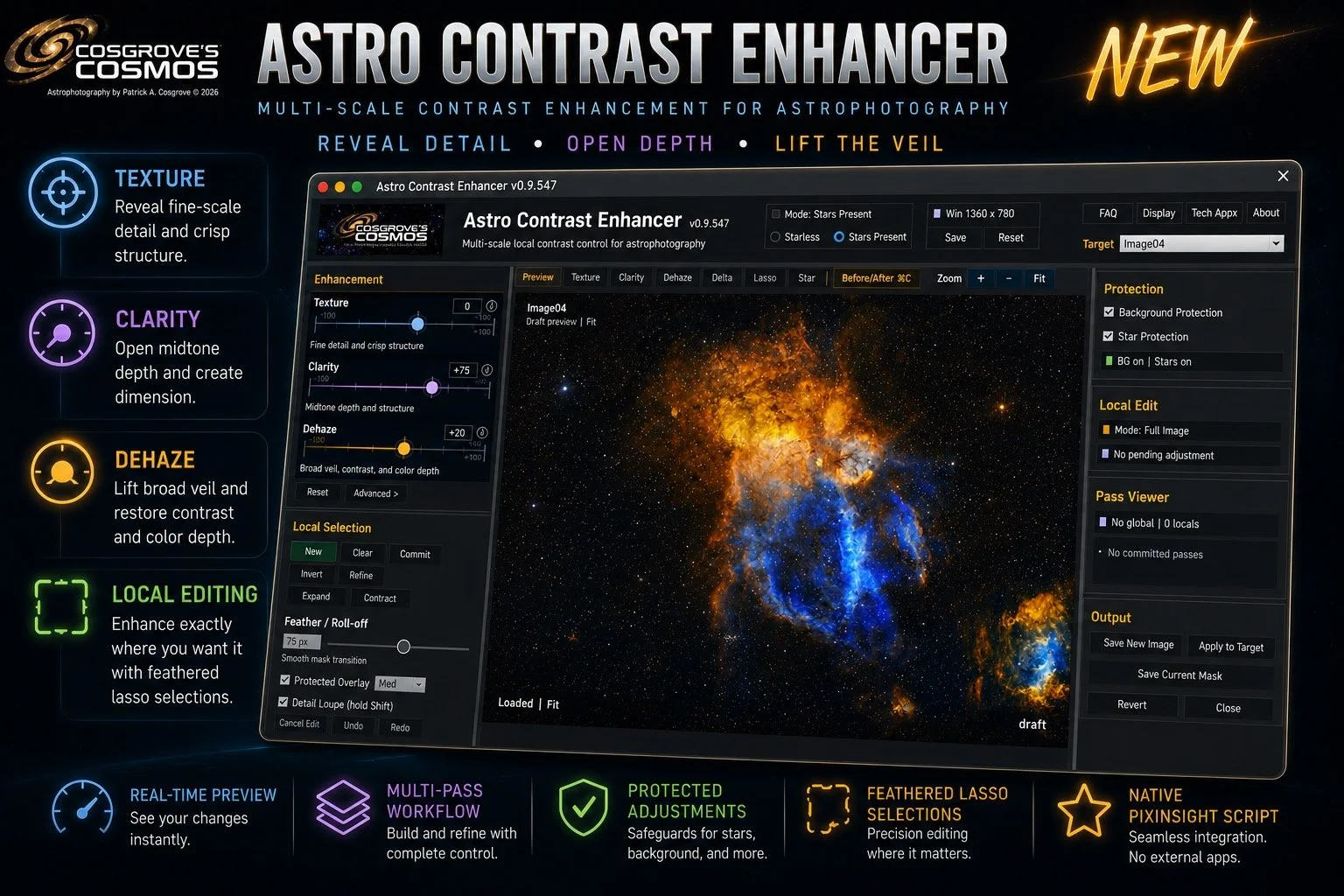
Keep the Final Contrast Work Inside PixInsight
ACE grew from a repeated interruption in my own processing: leaving PixInsight for one final round of Texture, Clarity, and Dehaze adjustments in Photoshop.
PixInsight already contains many excellent contrast tools. What I wanted was something different: an intuitive, real-time environment for the final refinements that help an image reveal more structure, depth, and visual presence.
Astro Contrast Enhancer brings those adjustments together in one focused script designed around stretched astrophotography images. It is not intended to replace PixInsight's established processes or Photoshop. It is simply the approach I developed to make a common finishing step faster and more direct.
I can explore an adjustment, compare it immediately with the original, protect stars and backgrounds, apply it globally or locally, and commit the full-resolution result without leaving PixInsight.
A Simpler Finishing Workflow
Explore contrast refinements, compare the result, and apply it directly to the PixInsight image.
See ACE as You Will Actually Use It
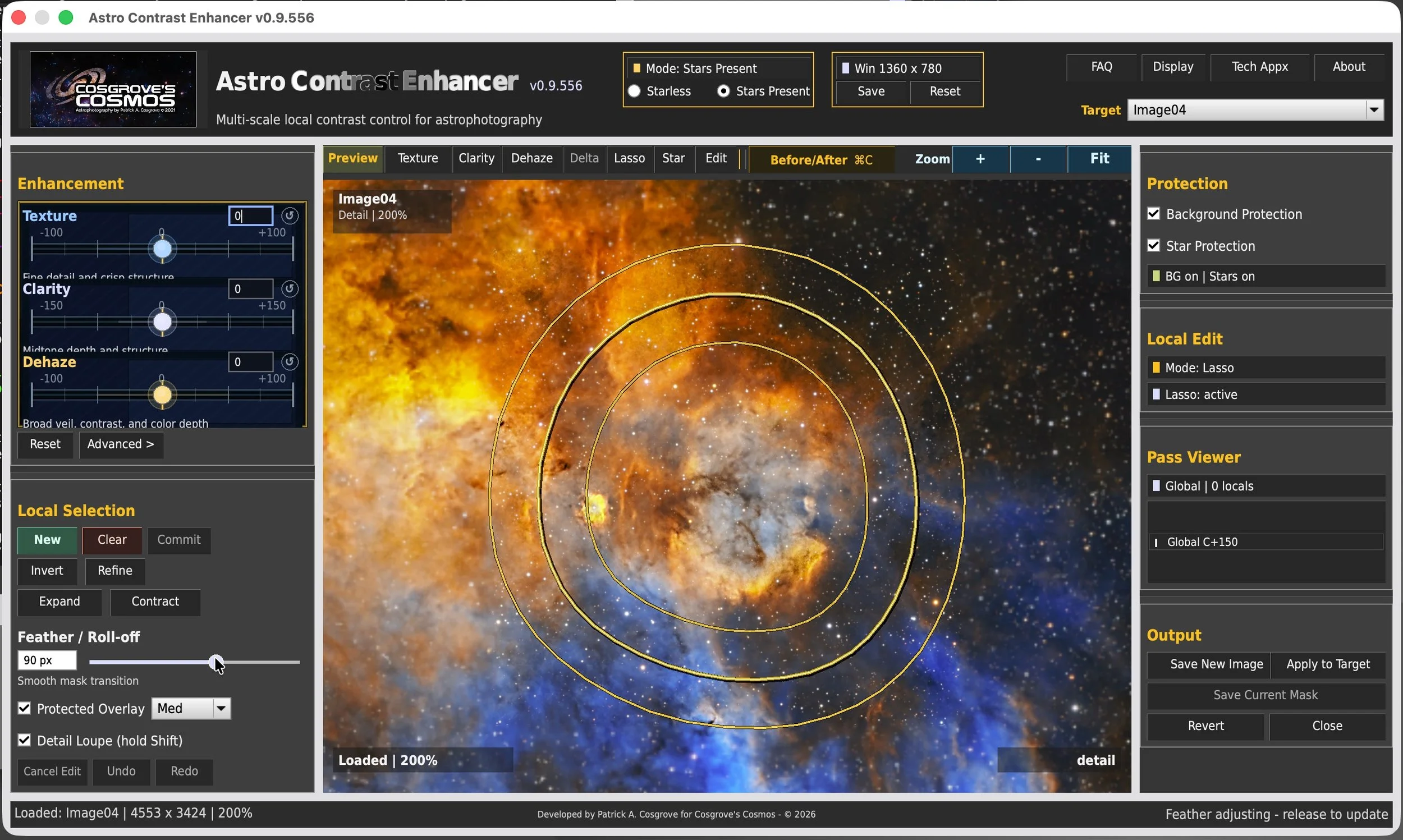
ACE brings real-time preview, Texture, Clarity, Dehaze, protected local editing, star and background protection, comparison, and full-resolution output together in one focused PixInsight interface.
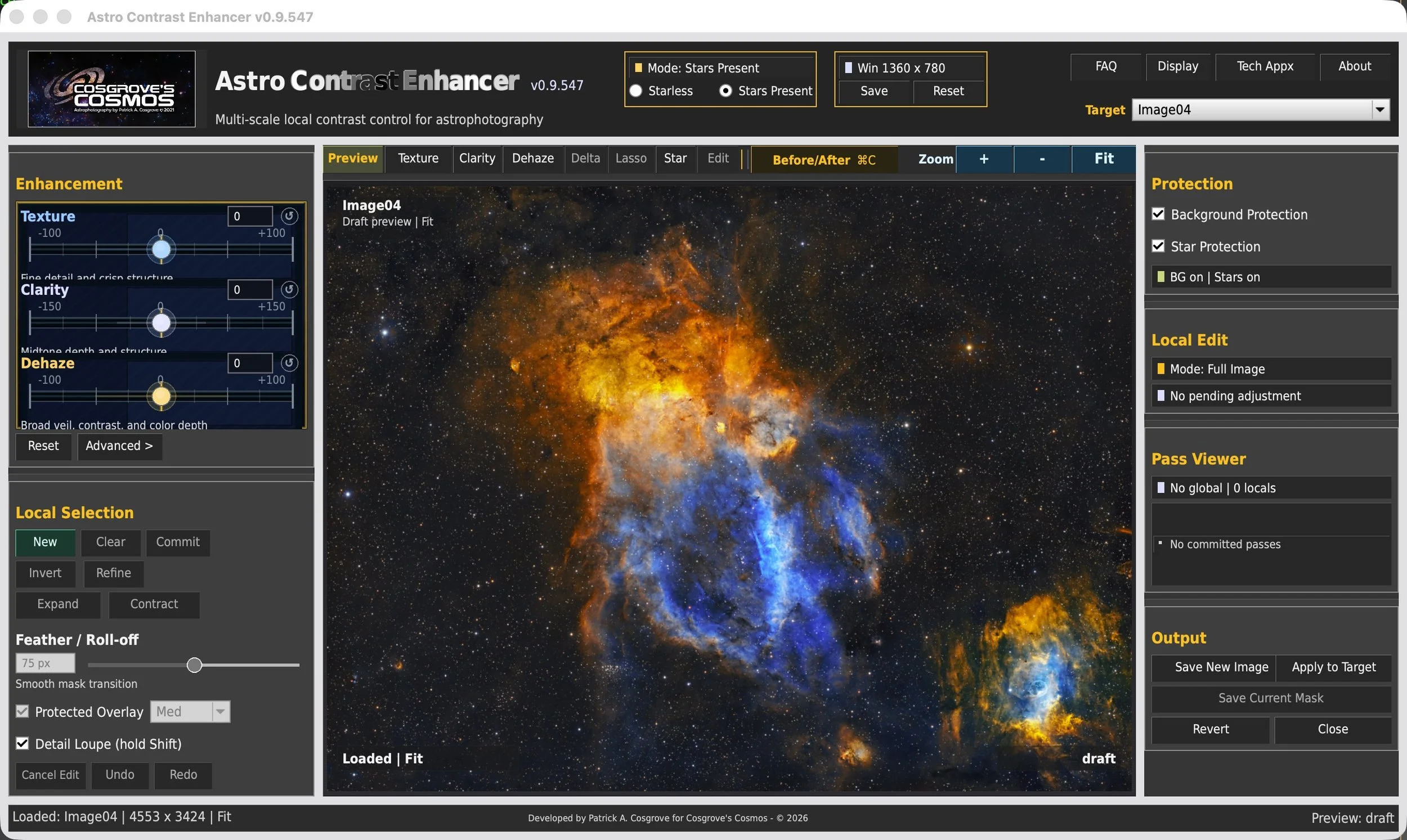
The numbered guide identifies the major capabilities without covering or reducing the readability of the actual interface.
Three Controls for Three Different Visual Problems
Texture, Clarity, and Dehaze are not three strengths of the same contrast operation. Each addresses a different way an image can feel visually incomplete.
Texture
Fine StructureEnhances small-scale structure such as filaments, dust boundaries, folds, and delicate detail without behaving like conventional sharpening.
Clarity
Perceived DepthShapes broader tonal relationships so structures feel more open, layered, and dimensional while preserving smooth transitions.
Dehaze
Broad VeilingReduces the impression of a broad veil across the image, improving large-scale separation while allowing contrast and color depth to emerge together.
The Difference Should Be Visible, Not Merely Described
Drag each divider to compare the original with the ACE result. The left side is the original image; the right side shows the ACE treatment.
Texture Example
Use a detailed nebula or galaxy crop where small structure becomes easier to recognize.
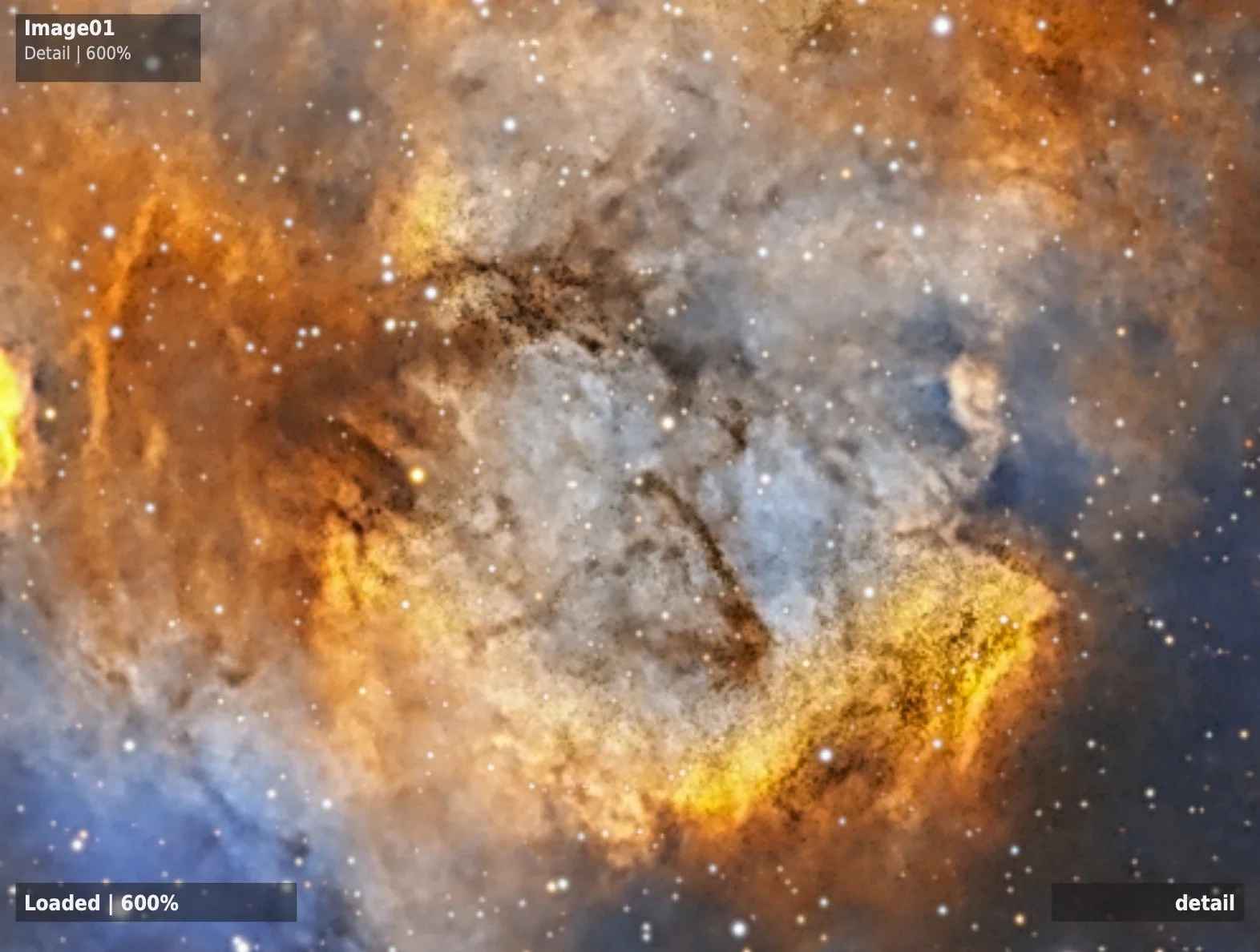
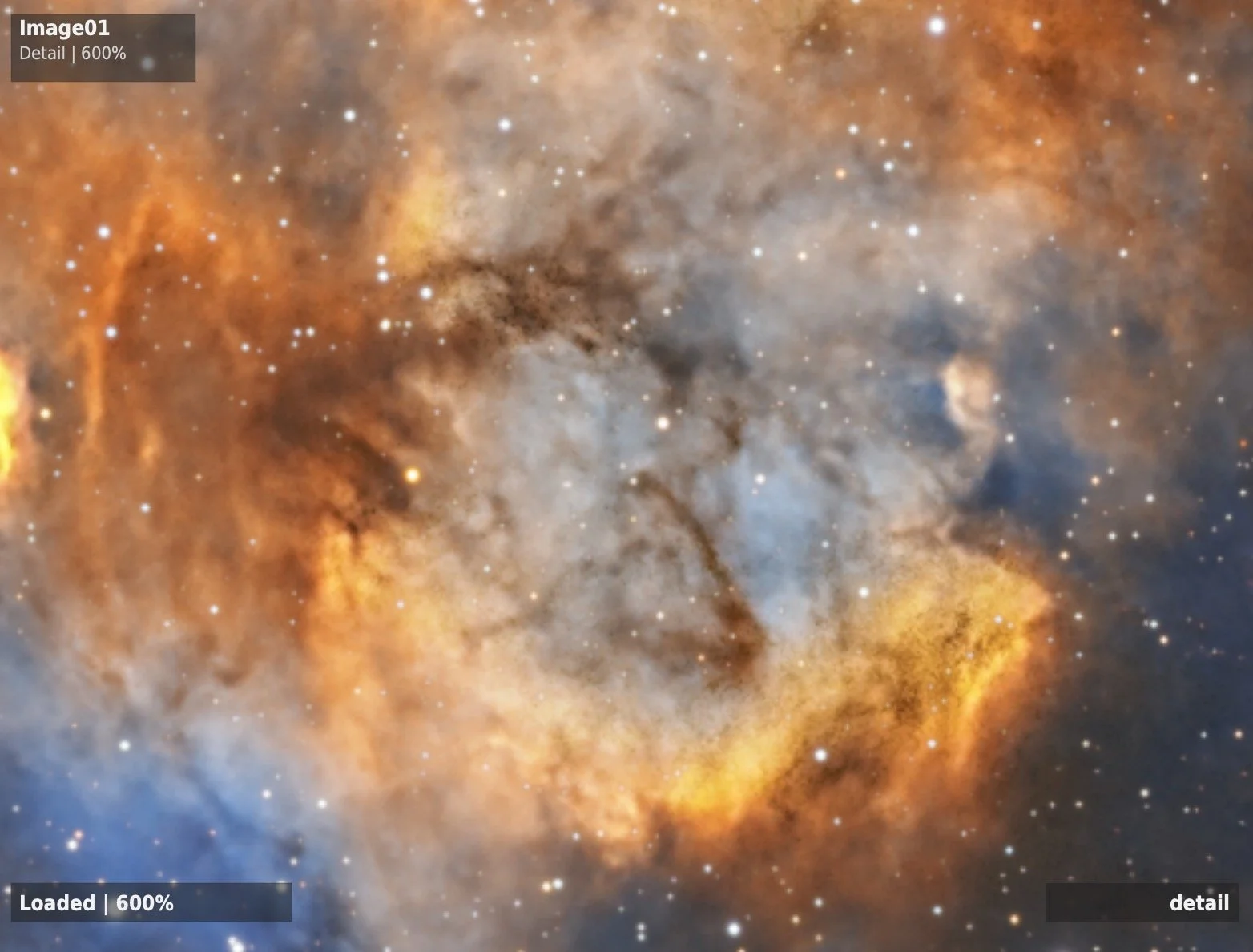
Look for improved filament, fold, and boundary definition without obvious halos or brittle detail.
Clarity Example
Use a galaxy or dusty nebula where broad layers become more open and dimensional.
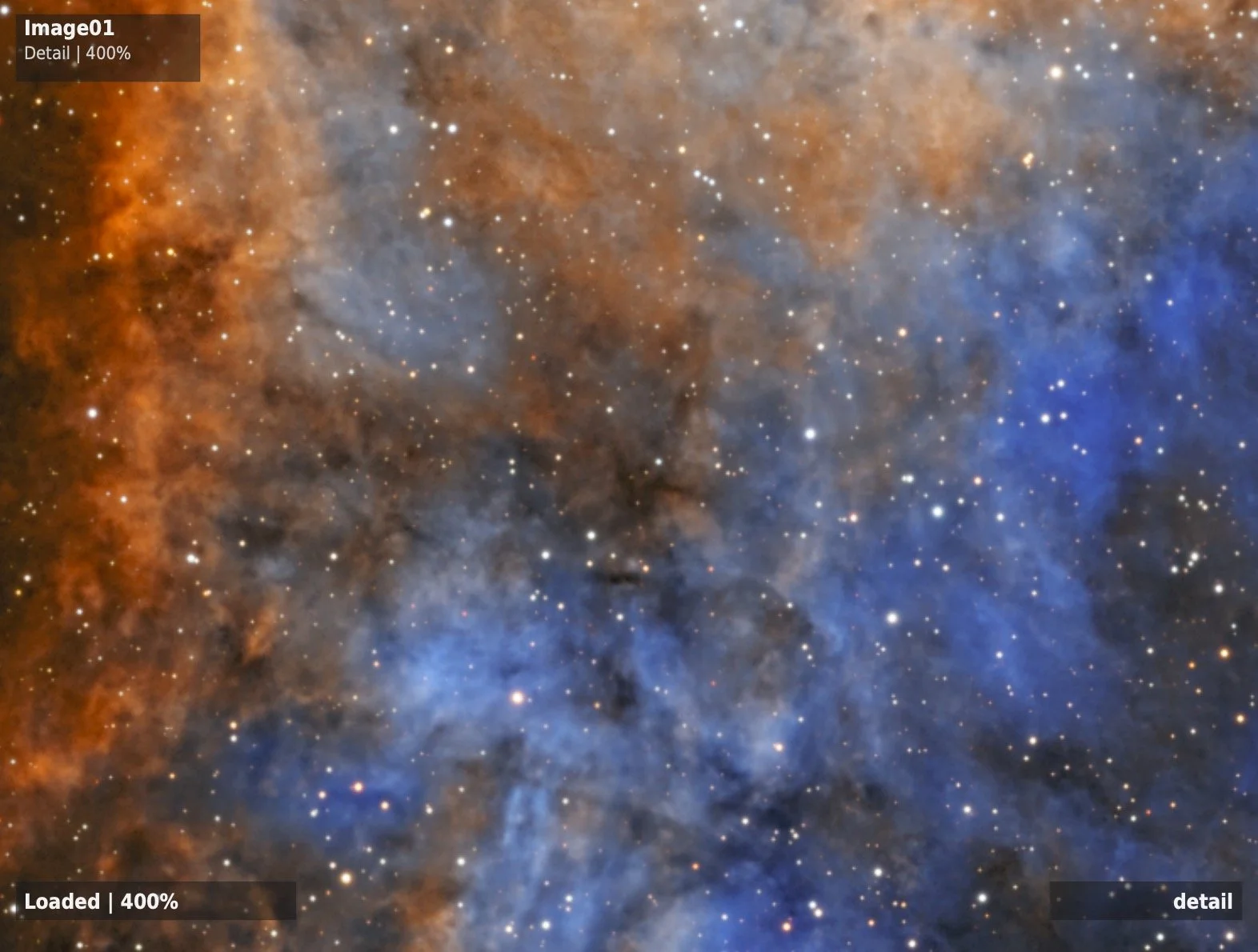
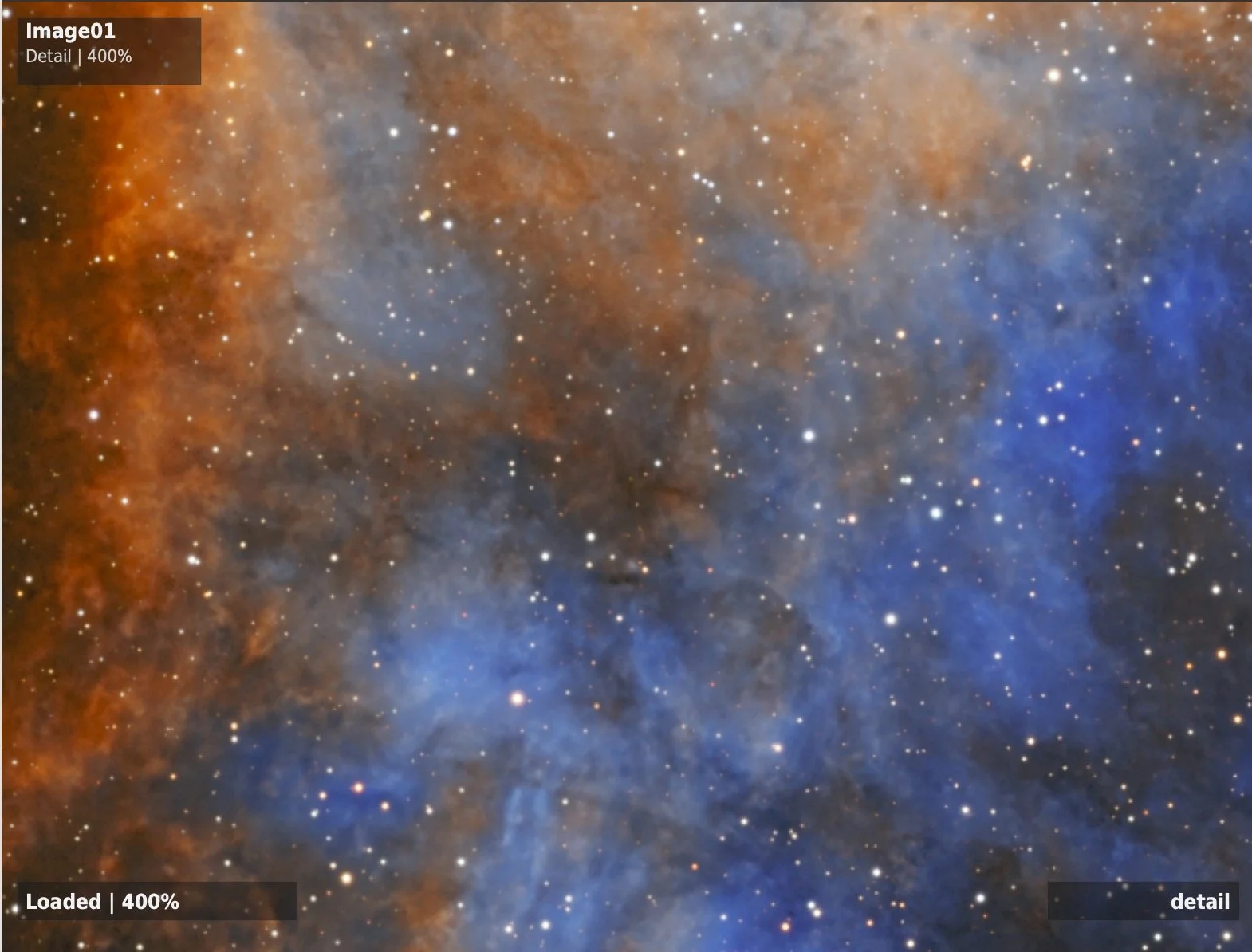
Look for stronger separation among arms, dust, cores, and surrounding structure without harsh tonal plateaus.
Dehaze Example
Use an extended target where broad haze or flatness visibly obscures larger relationships.
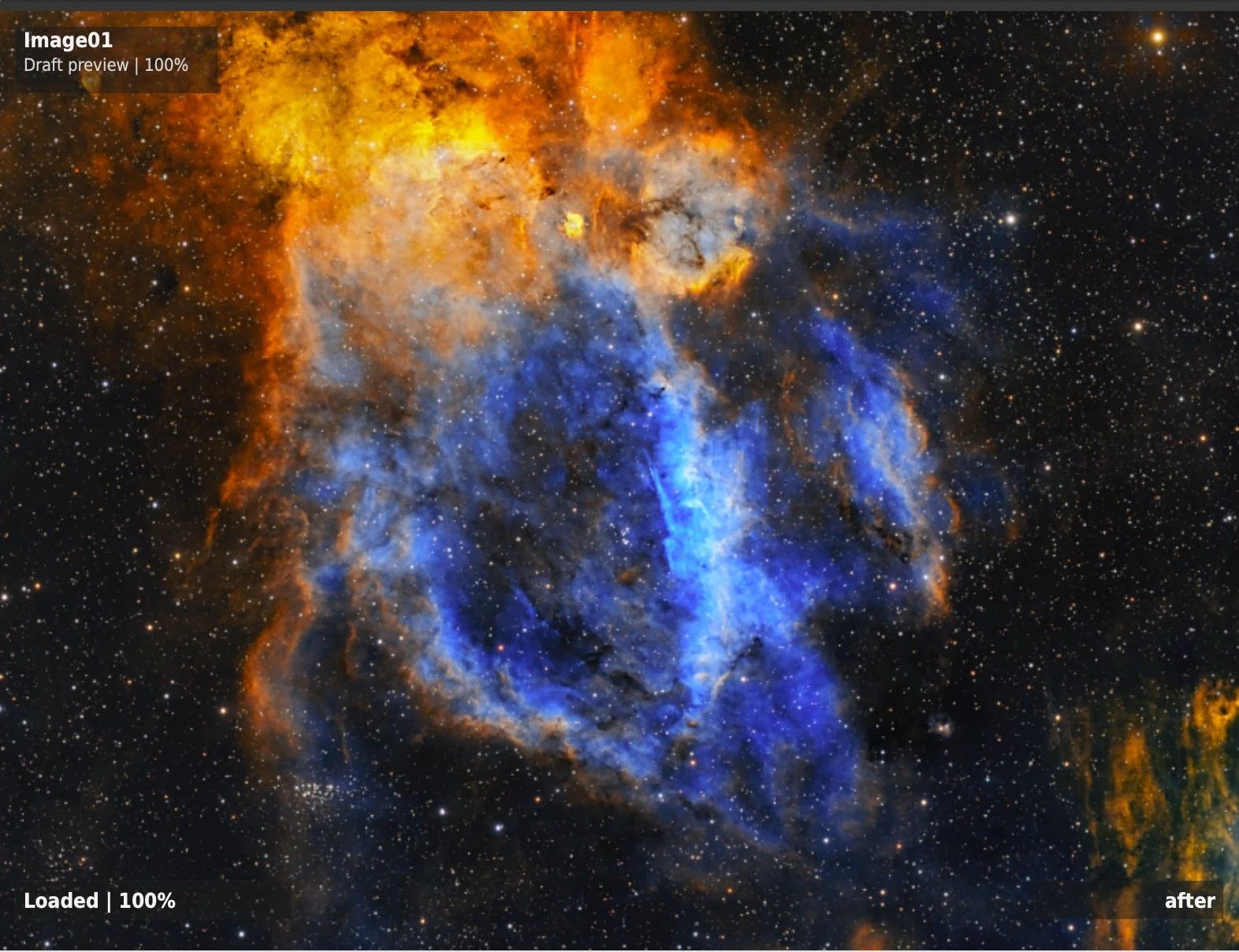
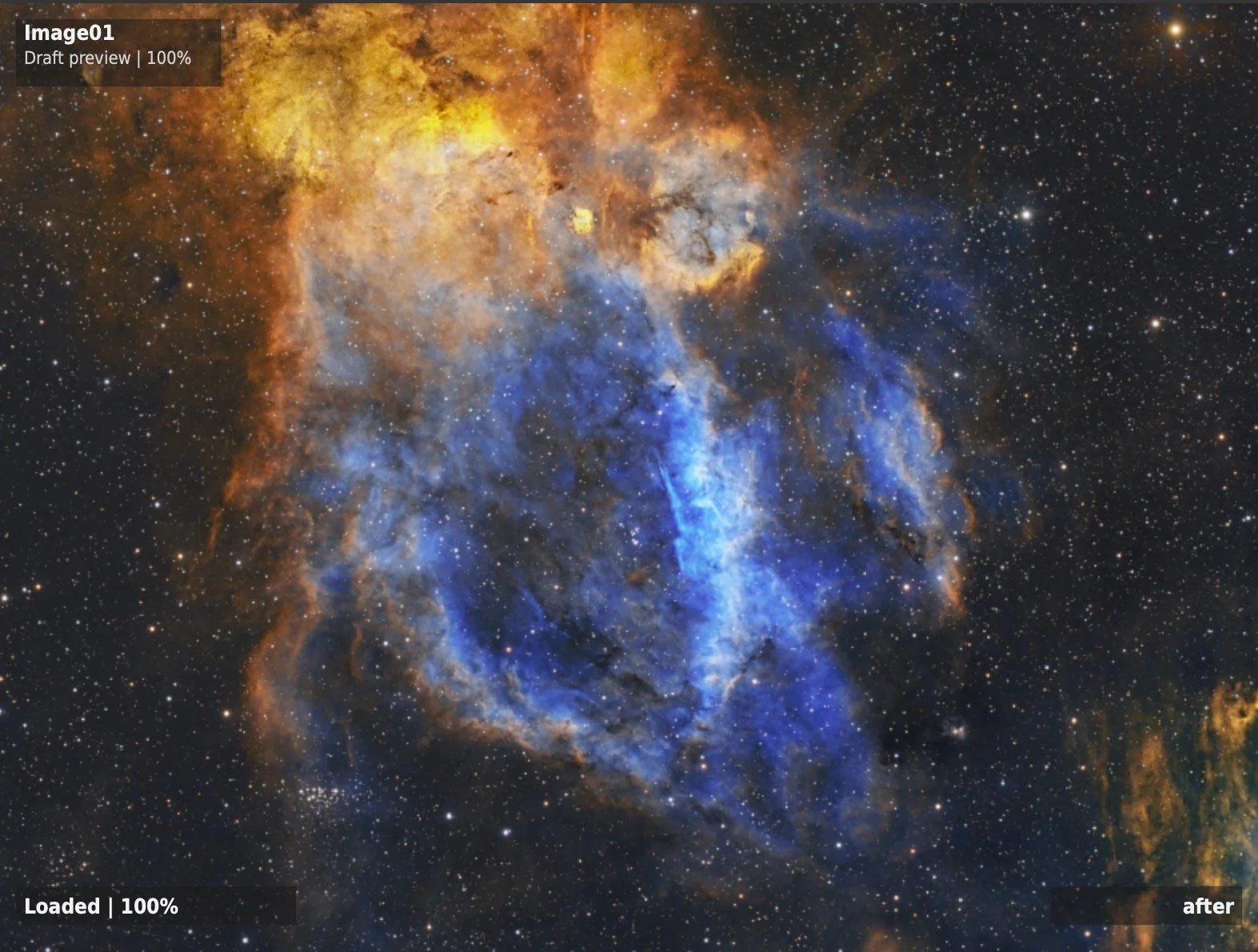
Look for reduced veiling, clearer broad-scale separation, and stronger apparent color without damaged highlights.
Combined ACE Example
Use a full image that benefits from a restrained combination of all three controls.
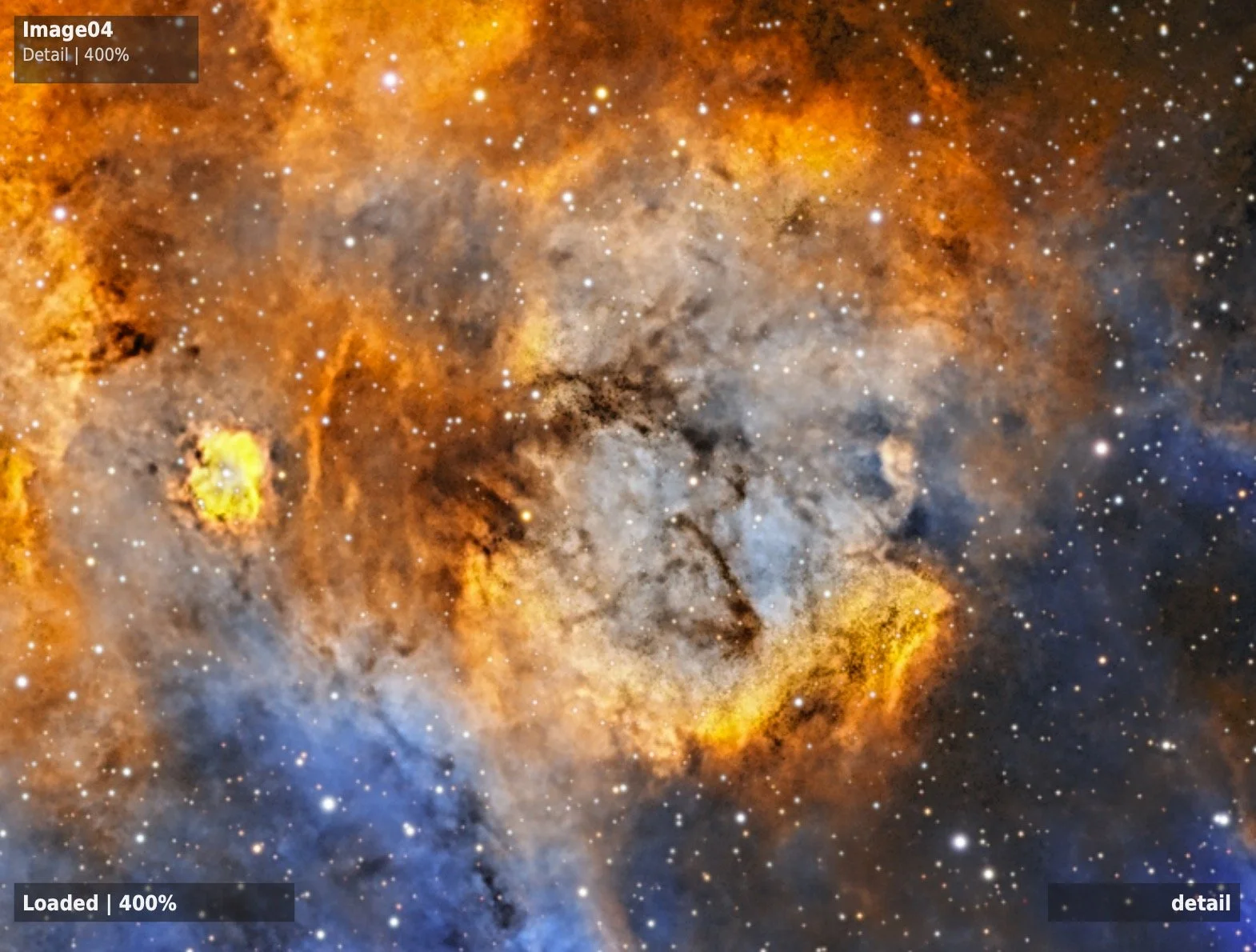
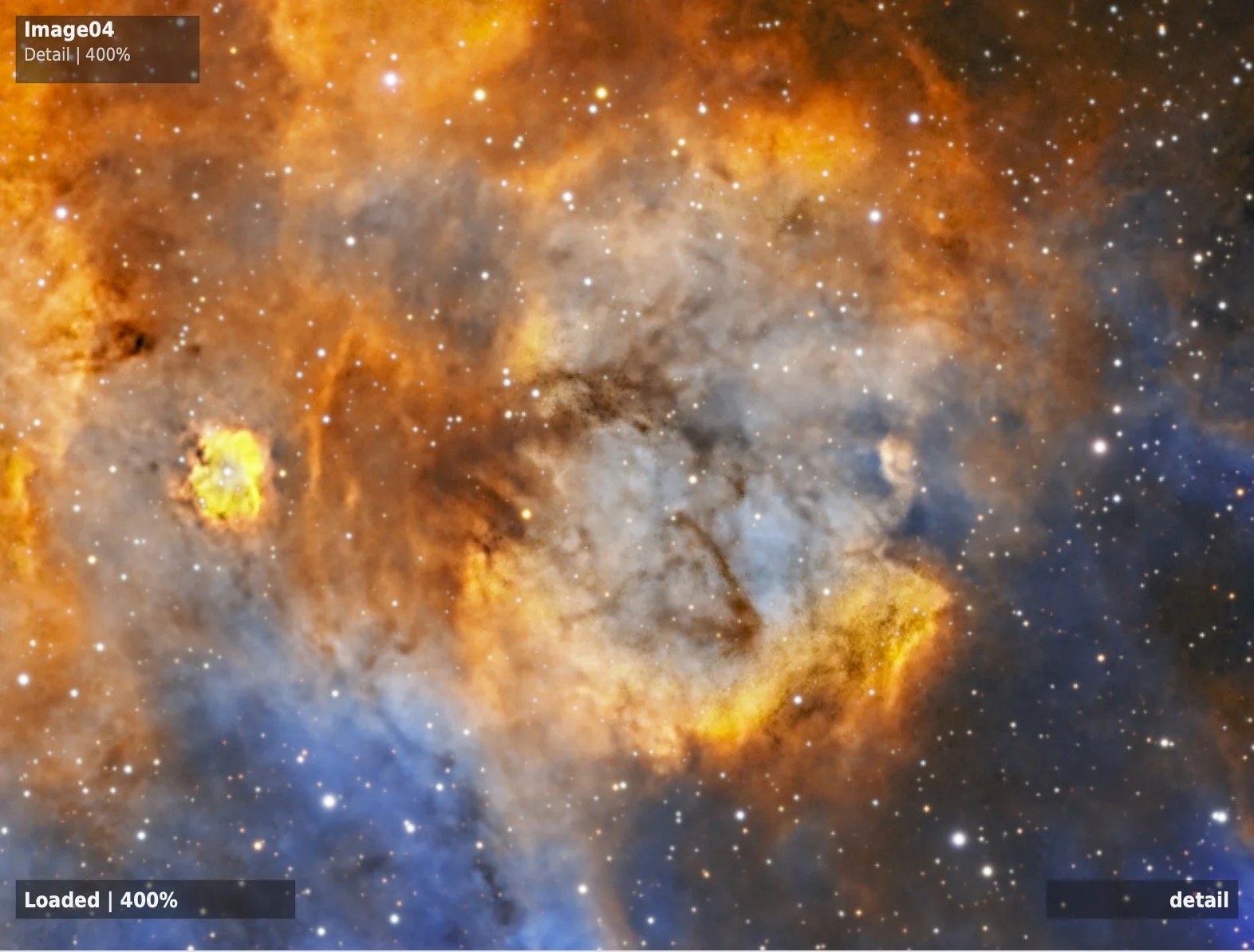
Look for balanced improvement in fine structure, depth, and broad openness rather than one uniformly stronger effect.
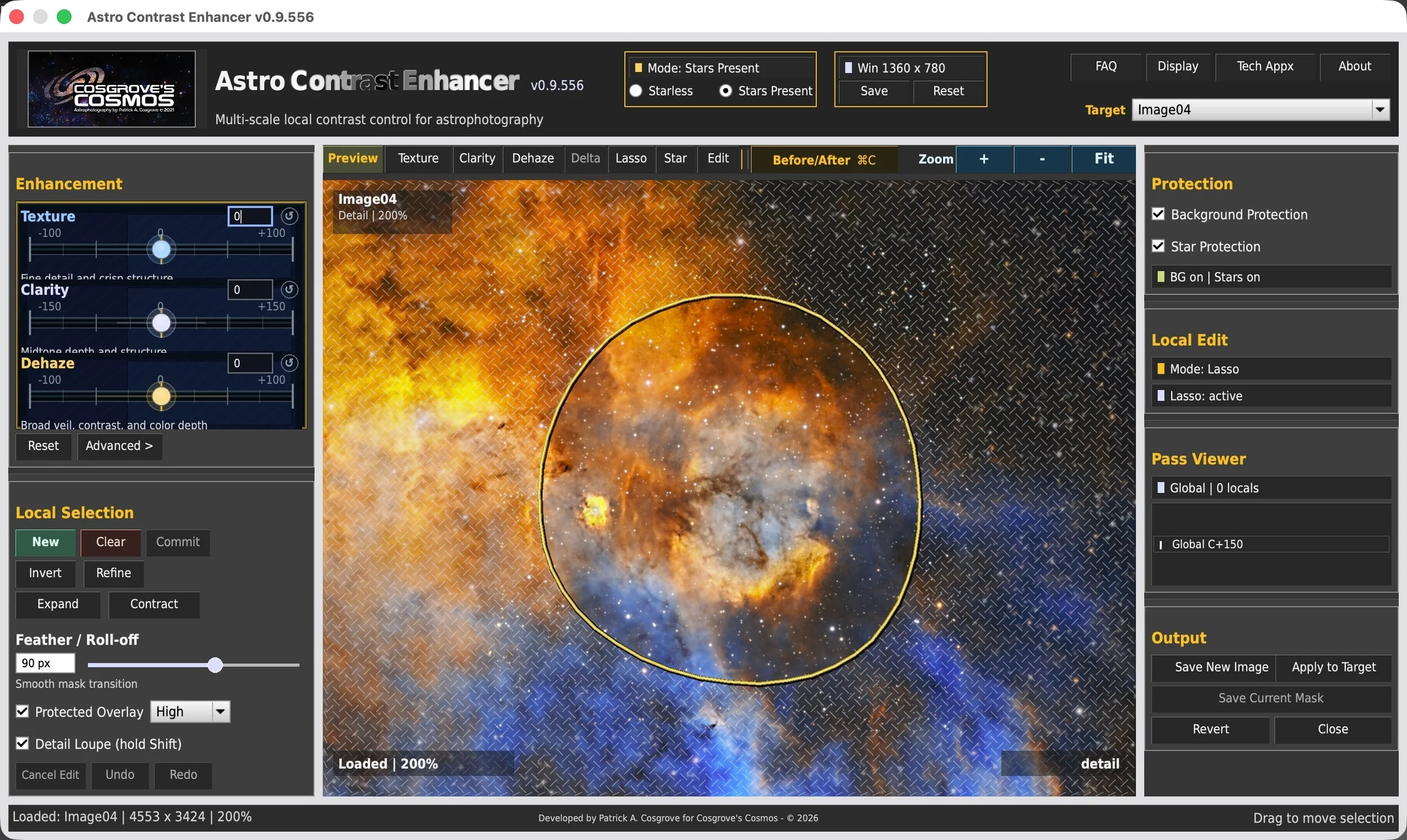
Apply the Effect Where the Image Needs It
Not every region benefits from the same adjustment. ACE includes a local-editing workflow that makes the selected region, its protected surroundings, and the feathered transition visible before the adjustment is committed.
Install ACE Through the Cosgrove's Cosmos Repository
ACE is installed through PixInsight's repository system. The update URL is entered inside PixInsight; it is not intended to be opened as a web page.
Repository Installation
Existing Astro Color Mixer users may already have this repository installed. In that case, run a normal PixInsight update and restart the application.
In PixInsight 1.9.4, go to Resources → Updates → Manage Repositories.
Add the Cosgrove's Cosmos update repository: https://cosgrovescosmos.github.io/astro-color-mixer-pixinsight/updates/
Run Resources → Updates → Check for Updates and complete the update.
Exit PixInsight. The installation is completed as PixInsight closes and processes the update.
Restart PixInsight and look for ACE under Script → CosgrovesCosmos → Astro Contrast Enhancer .
What to Know Before You Begin
Which version of PixInsight is required?
Astro Contrast Enhancer requires PixInsight 1.9.4. Earlier versions are not supported, so update PixInsight before installing or running ACE.
What kind of image should I use with ACE?
ACE is designed primarily for images that have already been calibrated, integrated, color balanced, and stretched. It is a late-stage refinement tool rather than a replacement for the core PixInsight workflow.
Do I need to use Texture, Clarity, and Dehaze together?
No. Each control addresses a different visual problem. Use only the control or combination that helps the image.
Does ACE replace sharpening or other PixInsight contrast tools?
No. ACE complements deconvolution, multiscale processing, LocalHistogramEqualization, HDR methods, and other established tools.
Should I use ACE on a starless image?
ACE can be used with stars present, and star protection is included. Starless processing may still make aggressive structure work easier on some images, but it is not required.
Is the preview the final full-resolution result?
The preview is optimized for responsive visual evaluation. When you apply the result, ACE replays the selected adjustments against the full-resolution PixInsight image.
Why can the controls be pushed beyond a reasonable result?
I often evaluate an adjustment by moving from too little to too much and then returning to the useful balance. ACE includes safeguards but leaves the final judgment with the astrophotographer.
What should I do if the ACE window does not fit my screen?
ACE uses one supported compact interface. On high-DPI Windows laptops, temporarily reducing operating-system display scaling toward 100% may be necessary.
Where can I send feedback or report a problem?
Send feedback and bug reports to contact@cosgrovescosmos.com. Include your PixInsight version, operating system, and enough detail to reproduce the issue.
Curious About the Image Science Behind ACE?
A separate in-depth article tells the development story: the Photoshop inspiration, the early assumption that the three controls differed mainly by scale, why that approach failed, and how Texture, Clarity, and Dehaze evolved into three different image models.
Understanding Astro Contrast EnhancerAstro Contrast Enhancer is freely shared software developed for my own astrophotography workflow. Experiment, compare, and adapt the approach to the needs of your own images.