Astro Color Mixer
A PixInsight Script tool for refining hue, saturation, and luminance in stretched RGB astrophotography images.
Astro Color Mixer
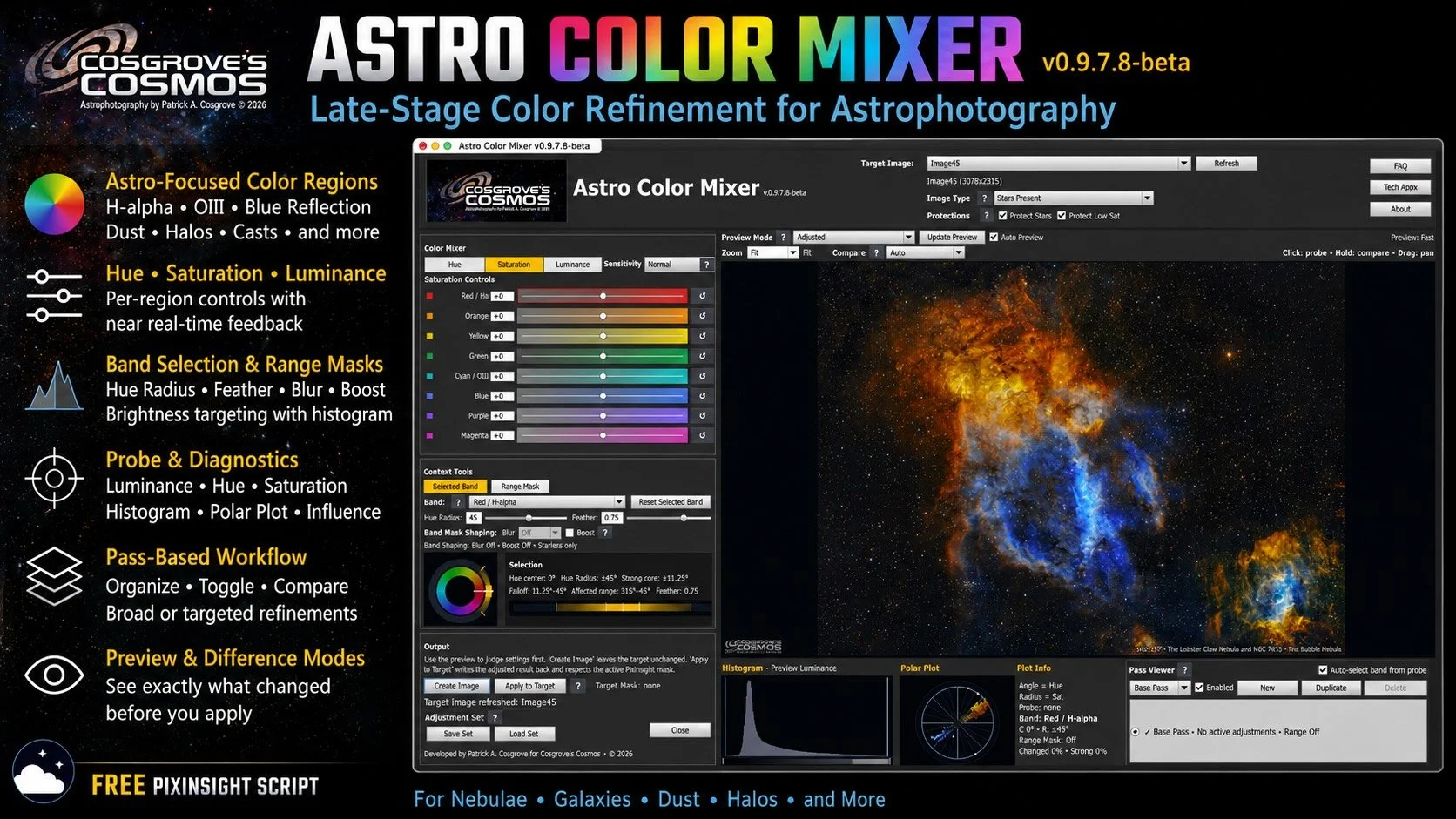
Astro Color Mixer is a nonlinear RGB color refinement tool I built for astrophotography. The goal is not to replace PixInsight, Photoshop, or the normal processing workflow, but to give astrophotographers a more focused way to make controlled color and luminance adjustments after an image has been stretched.
I have always been frustrated by the tools currently available in PixInsight for color manipulation and late-stage image polishing. I often use the Photoshop Camera Raw Color Mixer and its real-time hue, saturation, and luminance controls, but I have also been frustrated by its limitations for astrophotography. This tool is inspired by that capability, but adds elements that make it more astro-friendly.
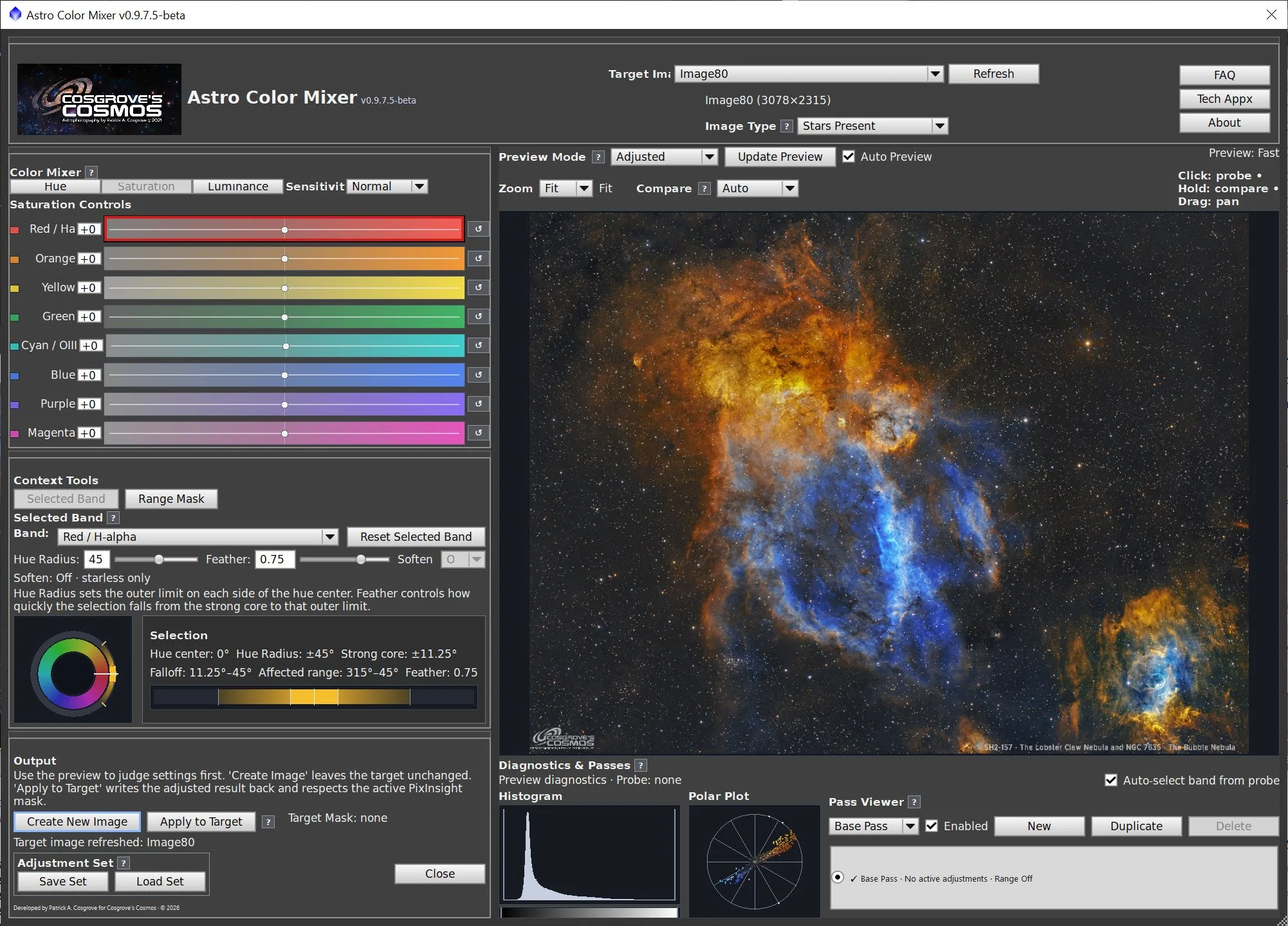
The tool works around practical astrophotography color regions: H-alpha reds, OIII/cyan regions, blue reflection nebulosity, warm dust, galaxy cores, neutral background areas, and common cleanup zones such as magenta halos or green casts. It also includes Range Masking, refinement passes, a histogram, polar color plot, and probe tools so adjustments can be made with visual feedback rather than guesswork.
This is still a beta tool, but it reflects the kind of color work I often find myself wanting to do late in processing: broad adjustments first, then more targeted refinements without losing track of what is being affected.
What to know before using the tool
Astro Color Mixer includes built-in FAQ and Technical Appendix buttons in the upper-right corner of the app. Those provide more detailed guidance on the workflow, Range Mask behavior, image modes, diagnostics, and the underlying processing model.
Start with a nonlinear RGB image
This tool is meant for images that have already been calibrated, integrated, color-balanced, and stretched. It is not intended for raw linear masters, calibration work, background extraction, or initial color calibration. This prototype accepts TIFF or PNG files as input.
Think late-stage refinement
Astro Color Mixer is best used after the image already has a reasonable global look. It is for controlled color and luminance shaping: strengthening faint color, taming halos, adjusting dust or galaxy tones, working on neutral background areas, and making targeted refinements.
Choose the right image mode
Use Stars Present if the image still contains normal stars. Use Starless / Star-Reduced if the stars have been removed or strongly reduced. The setting does not remove stars; it changes how conservatively the tool protects bright stellar structures.
Use small moves first
The sliders can make strong changes quickly. Start with modest adjustments, inspect the preview, and use the mask views, histogram, polar plot, and probe to understand what is being affected.
Standard vs Advanced
Standard mode is for broad color work. Use Advanced mode when you want refinement passes, Range Mask targeting, and more surgical changes.
Range Mask needs care
Range Mask limits changes by brightness. It is useful for backgrounds, faint nebulosity, highlights, galaxy cores, or halos, but it depends heavily on the image’s existing stretch. Always inspect the histogram and mask behavior before making strong changes.
The preview is guidance
The app uses preview-resolution data for speed. Saved output is rendered at full resolution, so the final result should match the intent, but the preview is still an approximation.
Saving your result
When adjustments are complete, use the Save Image button to export the final result. The saved image is rendered at full resolution.
Pixinsight Script:
This PixInsight Script version of this tool has just gone into Beta!
Would you like to try it out? I am looking for people who could use it and provide feedback and bug reports so that the tool can be fine-tuned.
New Version:
v0.9.7.11-Beta released 6-21-26!
This version introduced “Compact” mode, which operates with a smaller footprint and supports smaller screens.
Note:
Astro Color Mixer v0.9.7.7-beta requires PixInsight 1.9.4 or newer.
This release has been updated for PixInsight’s new V8 JavaScript runtime, which is required by the native Apple Silicon / ARM64 build of PixInsight 1.9.4. It has also been tested on the Windows release of PixInsight 1.9.4.
If you are using an older version of PixInsight, please update PixInsight before installing or running Astro Color Mixer from the repository.
To Try it Out:
In PixInsight, go to Resources->update->manage repositories.
Add the repository: https://cosgrovescosmos.github.io/astro-color-mixer-pixinsight/updates/
Do an Update.
Exit PixInsight, and the installation will be done.
You may be asked to add an “UNSIGNED Repository”. That's because this is a beta, and I have not yet applied to PixInsight for a developer ID. Go ahead and say "yes" so the script loads.
Look for it under Scripts→CosgrovesCosmos→Astro Color Mixer.
Installation note:
After installing from the PixInsight repository and restarting PixInsight, Astro Color Mixer should appear in the Script menu.
Expected location: Script → Cosgrove’s Cosmos → Astro Color Mixer
If the files install but the script does not appear in the Script menu, PixInsight may not have refreshed its feature-script index. This has been seen occasionally with third-party scripts.
To fix it:
If it does not appear, use:
Script > Feature Scripts > Add
Then select:
[PixInsight]/src/scripts/CosgrovesCosmos
After that, run:
Script > Feature Scripts > Regenerate
Click OK/Done.
If the script still does not appear, please send the following to contact@cosgrovescosmos.com:
- PixInsight version
- operating system
- whether the repository update reported success
- whether the script files appear to be installed
- whether Feature Scripts → Regenerate finds the script
- screenshot of the Feature Scripts window if possible